Annotations
Add your own insights, explanations, and annotations using typed, handwritten, or voice annotations directly in the study guide
What Are Annotations?
Annotations are your personal thoughts, explanations, questions, and insights that you add directly to your study content in the Reading tab. Think of them as your digital margin notes, diagrams, and voice memos—all linked to specific parts of your study material.
Unlike the main study note (which is the AI-generated simplified explanation of your source material), annotations are:
- Your own words — Write how you understand it, not how the textbook explains it
- Multiple formats — Type text, draw diagrams, or record audio explanations
- Contextual — Appear right next to the content they reference in the Reading tab
- Freeform — No structure required, just capture your thinking as you learn
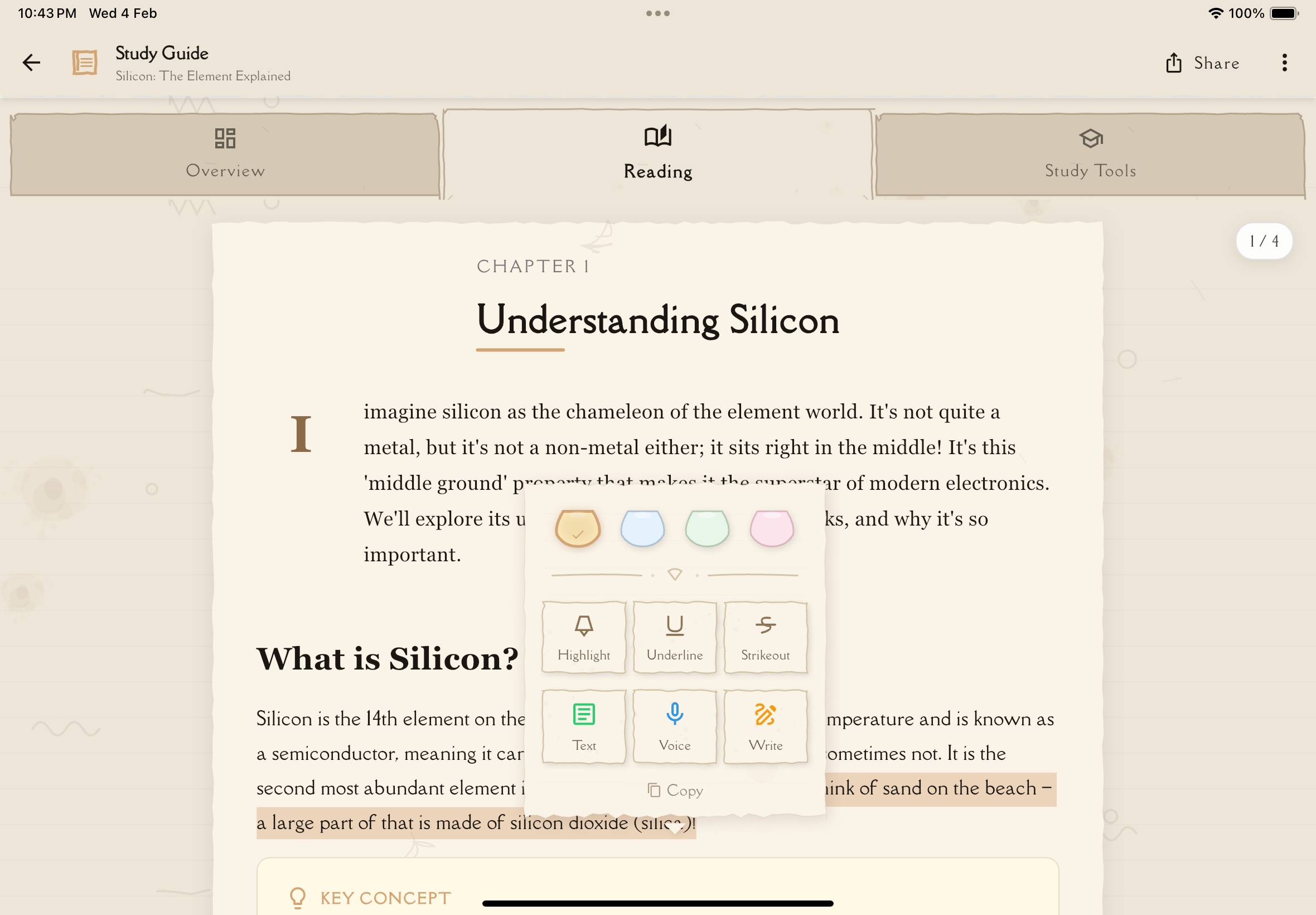
Access annotations from the Reading tab in your study guide. Long-press to select text, then choose from the context menu to highlight, underline, strike, or add typed, handwritten, or voice annotations.
How Annotations Bring the Feynman Technique to Life
Annotations are where the Feynman Technique truly comes to life. They're integrated directly into the Reading tab of your study guide, allowing you to add your own explanations, examples, questions, and insights right alongside the content you're studying.
Why Annotations Matter
The Feynman Technique emphasizes explaining concepts in your own words as if teaching someone else. Annotations are your space to:
- Explain further — Break down complex concepts even more simply
- Add examples — Include personal or real-world examples that make sense to you
- Ask questions — Note what's still unclear so you can research it later
- Make connections — Link this material to other things you've learned
- Record insights — Capture "aha!" moments and new understanding
- Annotate visually — Draw diagrams, mind maps, or sketches to visualize concepts
The act of writing annotations forces you to process information deeply. If you can't explain it in your own words, you don't fully understand it yet—and that's okay! Annotations help identify these gaps.
How to Access Annotations
Annotations are integrated into the Reading tab of your study guide. To add an annotation:
- Open any study note and tap the Reading tab
- Long-press to select the text you want to annotate
- A context menu appears with formatting options (highlight, underline, strike) and annotation options
- Choose your annotation type: Typed Note, Handwritten Note, or Voice Note
- Create your annotation and save
Three Types of Annotations
Notesmakr supports three ways to capture your thoughts, all accessible from the Reading tab:
1. Typed Annotations
Use the rich text editor to write explanations, examples, questions, or summaries. Perfect for detailed written explanations.
Best for:
- Detailed explanations and analysis
- Lists and structured information
- Quick typing on a physical keyboard
- Searchable text content linked to specific passages
2. Handwritten Annotations
Draw, sketch, and write naturally with your finger or stylus. Ideal for diagrams, equations, mind maps, and visual thinkers.
Best for:
- Diagrams and visual representations
- Mathematical equations and formulas
- Quick sketches and doodles
- Memory techniques (drawing aids retention)
- Non-Latin scripts and special symbols
Research shows that handwriting (compared to typing) improves information retention and conceptual understanding. The motor activity of writing engages more of your brain!
3. Voice Annotations
Record audio explanations as if teaching the material to someone else. Great for auditory learners and hands-free annotation.
Best for:
- Explaining out loud (Feynman's core technique)
- Auditory learners who think better by talking
- Recording thoughts while walking or commuting
- Practicing verbal explanations before a presentation
- Capturing spontaneous insights quickly

When to Use Annotations
During Initial Learning
As you read through your study note in the Reading tab, add annotations to:
- Clarify points that confused you
- Add examples that helped you understand
- Note questions to research later
While Studying
When reviewing your study notes before a test in the Reading tab:
- Annotate passages with mnemonics and memory aids
- Draw visual summaries alongside key concepts
- Record yourself explaining key concepts
After Practice
Following quiz or flashcard sessions, return to the Reading tab and:
- Annotate sections where you got questions wrong
- Explain correct answers in your own words next to the relevant content
- Note patterns in your mistakes
Don't wait until you "fully understand" to add annotations. Write down your thoughts, questions, and confusion as you learn. Watching your understanding evolve over time is part of the learning journey!
Feynman Technique in Action
Annotations are the perfect place to practice the Feynman Technique:
Pick a specific concept from your study note that you want to master.
Add a typed or voice annotation explaining the concept as if teaching a child or someone unfamiliar with the topic. Use simple language and avoid jargon.
As you explain, you'll notice where you get stuck or use vague language. These are gaps in your understanding—write them down!
Return to your source material, research the unclear parts, and update your annotations with clearer explanations.
Refine your explanation. Use analogies, draw diagrams, record yourself explaining it until it feels natural and clear.
If you can't explain it simply, you don't understand it well enough. Annotations reveal what you truly know versus what you only think you know.
Organizing Your Annotations
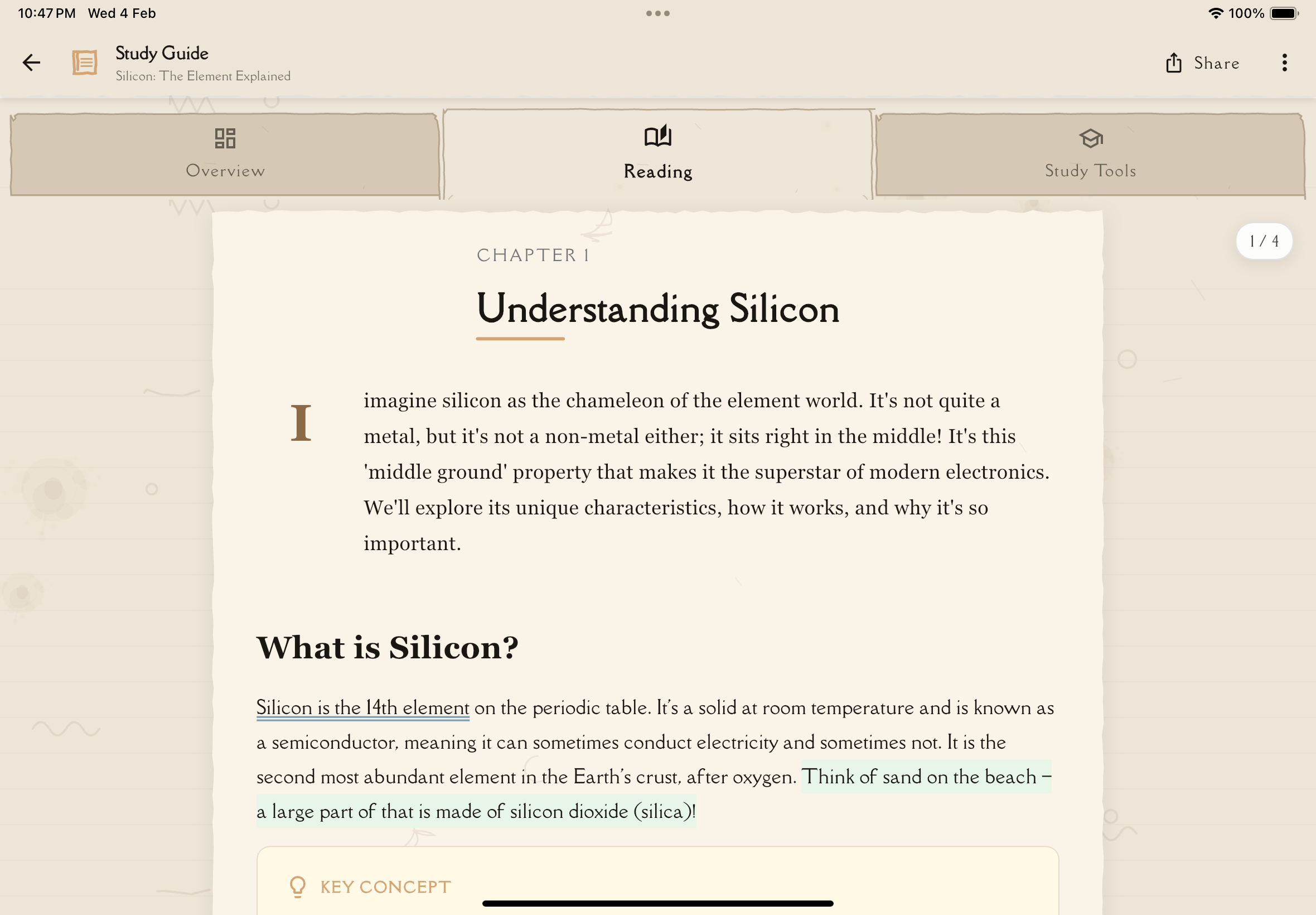
Annotations appear inline in the Reading tab, directly alongside the content they reference. You can:
- Add unlimited annotations — Create as many as you need throughout your study content
- Mix annotation types — Combine typed, handwritten, and voice annotations for rich multi-modal learning
- View in context — See your annotations right next to the passages they reference
- Navigate easily — Scroll through the Reading tab to see all annotations
- Edit anytime — Tap any annotation to update it as your understanding deepens
- Format text — Use highlight, underline, or strikethrough to mark important passages (accessible from the same long-press context menu)
What You'll Find in This Section
This section covers everything you need to know about creating and managing annotations in the Reading tab:
- Annotations Overview — Understanding the annotation system
- Typed Annotations — Create rich text explanations linked to content
- Handwritten Annotations — Draw diagrams and visual annotations
- Voice Annotations — Record audio explanations and insights
Learning Science Behind Annotations
Annotations leverage several evidence-based learning principles:
Generation Effect
Creating your own explanations (rather than just reading someone else's) significantly improves memory and understanding.
Dual Coding Theory
Combining words and visuals (typed + handwritten notes) creates multiple memory pathways, making recall easier.
Self-Explanation
Explaining material to yourself identifies gaps and deepens processing—one of the most effective study strategies.
Elaboration
Connecting new information to what you already know (through examples and analogies in annotations) strengthens retention.
The more effort you put into creating annotations, the better you'll remember the material. Struggle and confusion are signs of learning, not failure!
Next Steps
Ready to add your own insights? Open any study note and navigate to the Reading tab to start annotating. Then explore:
- Typed Annotations for written explanations
- Handwritten Annotations for visual annotations
- Voice Annotations for audio explanations
- Study Guide Annotations to learn about the full annotation system