Feedback & Support
Send feedback and bug reports directly to the Notesmakr team using shake-to-report, drawings, or voice
Notesmakr makes it easy to send feedback, report bugs, and share ideas with the development team. Simply shake your device anywhere in the app to instantly open the feedback form.
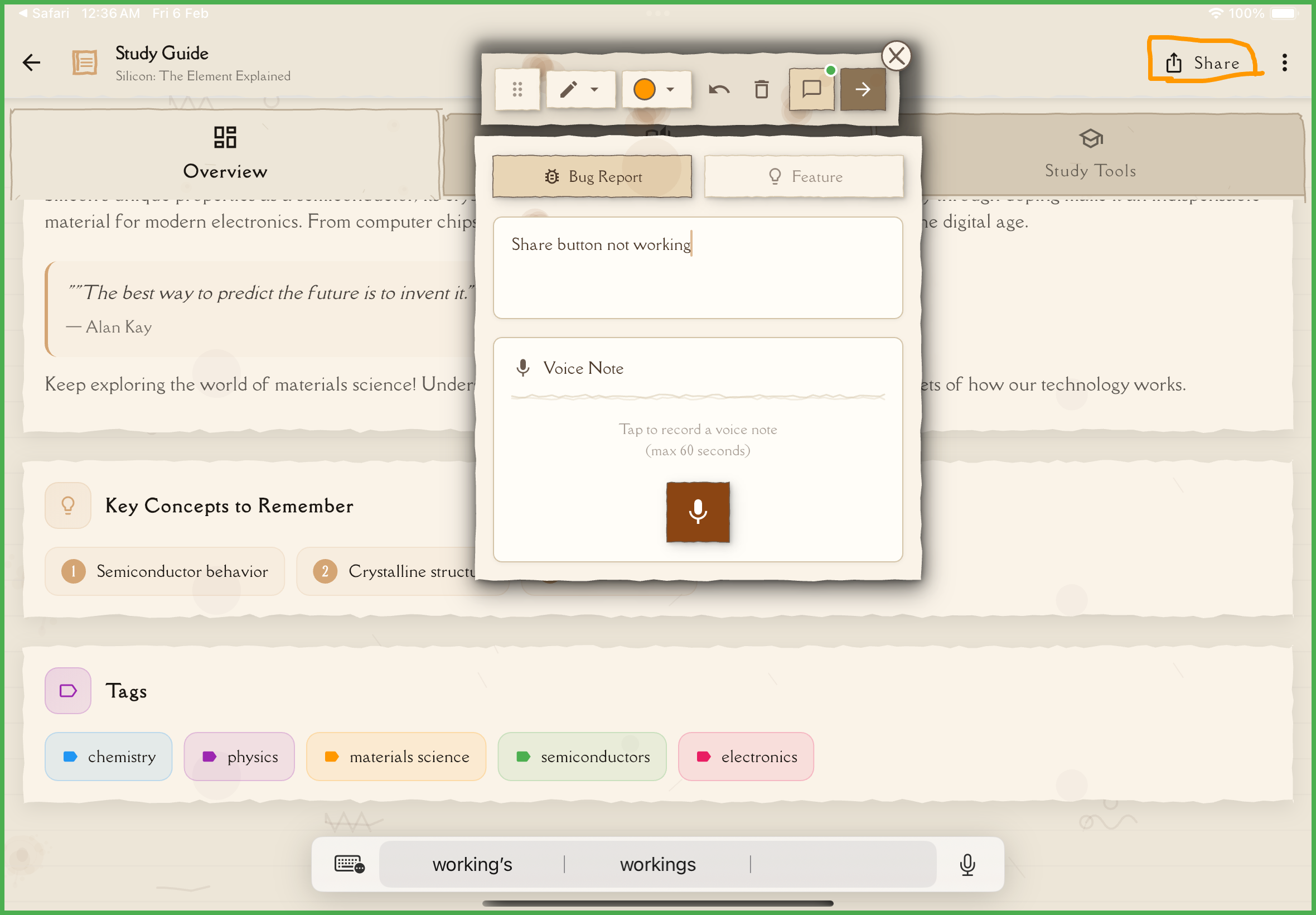
How to Send Feedback
Shake to Report
Shake your device anywhere in the app to trigger the feedback form instantly. This captures your current screen context, making it perfect for reporting bugs or suggesting improvements to specific features. The shake gesture works on every screen in the app.
Multiple Formats
Express your feedback in the way that works best for you:
- Typed feedback — Write detailed descriptions
- Drawing canvas — Circle issues or draw mockups on a screenshot
- Voice recording — Speak your thoughts
The best feedback is specific! Instead of "make quizzes better," try "add true/false questions to quizzes" or "show explanations after each quiz question." Specificity helps the team understand exactly what you need!
Viewing Your Feedback History
Go to Settings → Feedback to see a list of all the feedback you've previously submitted, along with their current status.
Using Shake to Report
The shake-to-report feature is the fastest way to send feedback:
While using the app, physically shake your device. This triggers the feedback form.
The feedback screen appears with input options:
- Feedback type — Choose Bug or Feature request
- Typed feedback — Text input field
- Drawing canvas — Draw or annotate on a screenshot
- Voice recording — Record audio feedback
Select how you want to provide feedback (or use multiple formats):
- Choose Bug or Feature type
- Type written feedback for detailed explanations
- Draw on the canvas to circle UI issues or sketch mockups
- Record voice feedback to speak your thoughts
Tap "Send" or "Submit" to send your feedback directly to the development team.
The shake gesture can be triggered anywhere in the app! Encounter a bug? Shake and report it immediately while the context is fresh.
Typed Feedback
Use the text input field to write detailed feedback:
What to Include
For Bug Reports:
- What happened — Describe the issue you encountered
- What you expected — What should have happened instead
- Steps to reproduce — How to recreate the bug (if known)
- How often — Does it happen every time, randomly, or just once?
For Feature Requests:
- What you want — Describe the feature or improvement
- Why it's useful — Explain the problem it solves
- Who benefits — All users, specific learner types, certain use cases
For General Feedback:
- Your thoughts on the app experience
- Design or usability suggestions
- Comparisons to other study apps
- What's working well or could be improved
Tips for Clear Feedback
Be Specific:
- "Add true/false questions to quizzes" instead of "Make quizzes better"
- "Flashcard text is too small on iPhone SE" instead of "Fix the UI"
Include Context:
- Device model (iPhone 14, Samsung Galaxy S23, iPad Pro)
- OS version (iOS 17, Android 14)
- App version (visible in Settings)
Stay Constructive:
- Frame criticism constructively
- Focus on the issue, not blame
The more specific your feedback, the easier it is for the development team to understand and address it!
Drawing Canvas
Use the drawing canvas to visually annotate issues or sketch ideas:
In the feedback form, tap the drawing or canvas icon.
The canvas shows a screenshot of your current screen. Use drawing tools to:
- Circle UI elements that have issues
- Draw arrows to highlight specific areas
- Sketch mockups of feature ideas
- Mark problem areas with annotations
Available tools:
- Pen — Freehand drawing
- Highlighter — Transparent overlay for emphasis
- Eraser — Remove drawn elements
- Color Picker — Choose stroke colors
Your drawing is attached to the feedback submission automatically.
Best Uses for Drawing Feedback:
- Highlighting UI bugs or glitches
- Showing where a button is hard to tap
- Sketching feature mockups
- Indicating layout issues
- Annotating error messages
A picture is worth a thousand words! Use the drawing canvas to show exactly what you mean—it's often clearer than text descriptions.
Voice Recording
Record audio feedback by speaking your thoughts:
In the feedback form, tap the microphone or voice icon.
Allow microphone access if prompted (required for recording).
Tap "Record" and speak naturally:
- Describe the issue or idea
- Walk through steps that led to a bug
- Share your thoughts on a feature
- Explain what you'd like to see improved
Tap "Stop" when done. You can:
- Play — Listen to your recording
- Re-record — Start over if needed
- Delete — Remove the recording
The voice recording is attached to your feedback submission.
Best Uses for Voice Feedback:
- Explaining complex bugs that are hard to describe in text
- Walking through reproduction steps verbally
- Sharing detailed feature ideas conversationally
- Providing feedback while multitasking
- Expressing tone and emotion (frustration, excitement, confusion)
Voice feedback is great when typing is inconvenient or when you want to explain something conversationally. Don't worry about perfection—just speak naturally!
What Happens After You Submit Feedback?
Your feedback is delivered directly to the Notesmakr development team.
The team reviews all feedback. Bug reports are assessed by severity:
- Critical — Crashes, data loss, blocked features (immediate attention)
- High — Major features broken, but workarounds exist
- Medium — Minor issues that don't block workflows
- Low — Cosmetic issues, typos, small annoyances
Feedback is prioritized based on:
- Severity (for bugs)
- User demand (how many users report the same issue or request)
- Alignment with product vision
- Technical feasibility
Bug fixes and feature improvements are added to the development roadmap and released in future updates.
You may not receive individual responses to every feedback submission, but all feedback is reviewed and considered. Your input directly influences Notesmakr's development!
Feedback Best Practices
Do's ✓
Be Specific
- "Add true/false questions to quizzes" instead of "Make quizzes better"
- "Flashcard text is too small on iPhone SE" instead of "Fix the text"
Explain the Why
- Help the team understand your use case and motivation
- "I use quizzes for exam prep and need more question variety"
Include Context
- Device model and OS version
- Steps to reproduce bugs
- Screenshots or drawings when relevant
Use the Right Format
- Typed — Detailed explanations, bug reports
- Drawing — Visual issues, UI problems, mockups
- Voice — Complex issues, conversational feedback
Be Constructive
- Frame criticism constructively
- Focus on solutions, not just problems
Be Patient
- Development takes time
- Not all feedback gets individual responses
Don'ts ✗
Don't Be Vague
- "Make studying better" doesn't provide actionable direction
Don't Share Sensitive Info
- Don't include passwords, API keys, or personal data in feedback
Don't Spam
- Submit feedback once—don't repeatedly submit the same issue
Don't Expect Immediate Fixes
- Bug fixes and features are prioritized and scheduled
- Critical bugs get immediate attention, others are planned
Every piece of feedback is valuable, even if you don't receive a personal response. Your input helps shape Notesmakr's development and makes it better for everyone!
Contact Support
For urgent issues, account-specific problems, or questions that need direct assistance:
Email: [email protected]
When to Contact Support:
- Account access issues
- Billing or subscription problems
- Data loss or sync issues
- Urgent bugs blocking your workflow
- Privacy or security concerns
When to Use Feedback:
- Feature suggestions
- General bugs or issues
- Usability feedback
- Design suggestions
Use the feedback system for general suggestions and bugs. Contact support directly for urgent issues or account-specific problems that require immediate attention.
Next Steps
Ready to share your feedback?
Send Feedback:
- Shake your device anywhere in the app
- Choose your format — typed, drawing, or voice
- Submit to the development team
View Past Feedback:
- Go to Settings → Feedback to see your feedback history and status
Your feedback makes Notesmakr better for everyone!
Related Topics
- Study Settings — Configure study tool preferences
- Subscription — Explore premium features
- Getting Started — Learn the basics