Create from PDF
Transform PDF documents into comprehensive study notes with AI-powered extraction and summarization
PDF notes are perfect for transforming textbooks, research papers, lecture slides, and ebooks into structured, easy-to-understand study materials. Notesmakr's AI reads through your PDF, extracts key information, and creates comprehensive notes complete with study tools.
When to Use PDF Notes
PDF notes work best for:
- Textbook chapters: Transform dense textbook content into clear summaries
- Research papers: Extract key findings, methodology, and conclusions
- Lecture slides: Convert PowerPoint/PDF slides into readable notes
- Ebooks: Create study guides from digital books
- Study guides: Enhance existing study materials
- Technical manuals: Simplify technical documentation
PDFs with selectable text (not scanned images) work best. If your PDF is a scanned image, use the Scan method instead for better OCR results.
Step-by-Step Guide
From the Notes tab, tap the New Note button.
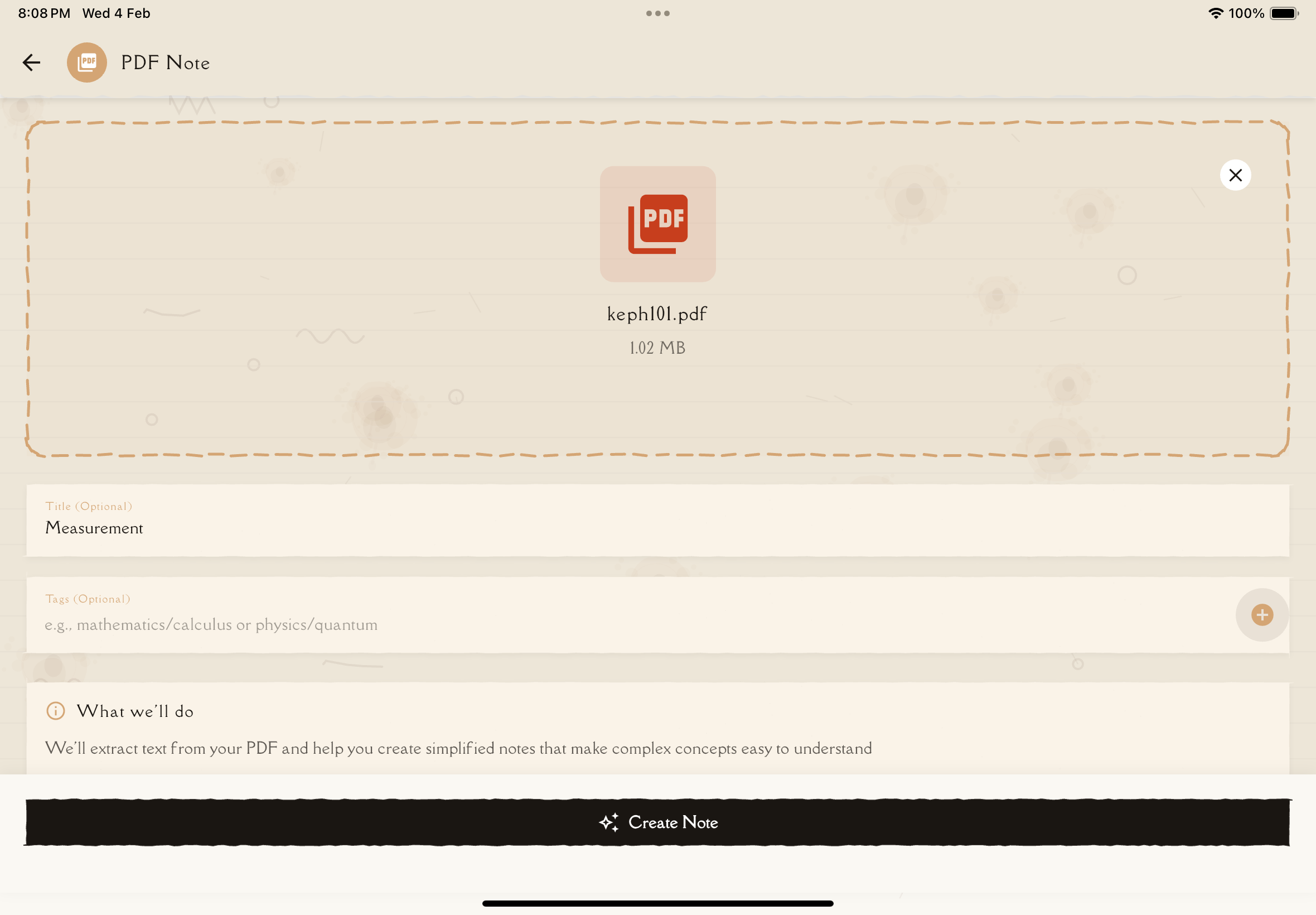
From the options, tap PDF (represented by a document icon).
A file picker appears. Navigate to your PDF and select it.
Sources you can choose from:
- Files app (iOS) or File Manager (Android)
- Cloud storage (iCloud Drive, Google Drive, Dropbox)
- Recent documents
- Downloads folder
Tap the PDF file to select it.
Notesmakr shows file information including the name and size. If everything looks correct, proceed to the next step.
You can choose to process the entire PDF or select specific pages. This is useful for:
- Processing a single chapter from a textbook
- Skipping front matter or appendices
- Focusing on the most relevant sections
The app automatically determines the optimal number of pages to process based on content density.
Give your note a descriptive title (or use the auto-generated one based on PDF filename).
Add relevant tags:
- Subject (e.g., "Biology", "History")
- Course (e.g., "BIO101", "HIST202")
- Topic (e.g., "Exam Prep", "Chapter 5")
Tags help you organize and find notes later.
Tap Create Note. Notesmakr uploads and processes your PDF.
You'll see a progress indicator showing the AI processing stages.
Typical processing times:
- Small PDF (1-10 pages): 30-60 seconds
- Medium PDF (10-30 pages): 1-2 minutes
- Large PDF (30+ pages): 2-5 minutes
Processing happens on the server — you can wait or navigate elsewhere.
Tap the notification or find the note in your Notes tab.
Your new note includes:
- Summary: High-level overview of the content
- Key Concepts: Main ideas and definitions
- Detailed Content: Organized, simplified explanations
You can then generate flashcards, quizzes, and mind maps from the note.
What AI Extracts from Your PDF
Notesmakr's AI handles various PDF elements:
Text Content
- Body paragraphs and explanations
- Headings and subheadings (preserved in structure)
- Bullet points and numbered lists
- Captions and annotations
- Footnotes and references
Visual Elements
- Images and diagrams: AI describes what's shown (e.g., "Diagram showing the water cycle with evaporation, condensation, and precipitation")
- Charts and graphs: Extracts data and trends
- Tables: Converts to readable format
- Equations: Preserves mathematical notation
Formatting
- Bold/italic emphasis (preserved in key concepts)
- Section hierarchies
- Page breaks and chapters
- Headers and footers (filtered out if not relevant)
AI describes visual content but doesn't include the actual images in notes. For subjects heavily dependent on visuals (anatomy, art history), consider adding your own images or annotations after creation.
Supported PDF Types
Notesmakr handles most PDF formats:
Fully Supported
- Text-based PDFs: PDFs created from Word, Google Docs, LaTeX
- Ebooks: EPUB converted to PDF, Kindle exports
- Digital textbooks: Publisher PDFs with selectable text
- Lecture slides: PowerPoint/Keynote exported to PDF
- Research papers: Academic papers from journals
- Reports: Business reports, white papers
Partially Supported
- Scanned PDFs: Work better with Scan method
- Image-only PDFs: Use Scan method for better OCR
- Complex layouts: Multi-column layouts may need manual review
- Heavily formatted PDFs: Unusual fonts or formatting may affect accuracy
Not Supported
- Password-protected PDFs: Remove password first
- Corrupted PDFs: Re-download or re-export
- DRM-protected ebooks: Export to unprotected format
Page Range Selection
Don't need the entire PDF? Select specific pages:
Common scenarios:
- Single chapter from a textbook: "Pages 45-67"
- Just the summary: "Pages 1-3, 95-100"
- Skipping intro pages: Start from a later page
The app intelligently determines how many pages can be processed based on content density, so longer PDFs may be automatically trimmed to the most relevant sections.
For very long PDFs, consider splitting into logical sections (e.g., one note per chapter). This makes studying more manageable and processing faster.
Troubleshooting
"Failed to extract text from PDF"
Possible causes:
- PDF is image-based (scanned)
- PDF is corrupted
- PDF has unusual encoding
Solutions:
- Try the Scan method instead (better for image-based PDFs)
- Re-export the PDF from its original source
- Use online tools to "flatten" or convert the PDF
- Check if PDF opens correctly in other PDF readers
"PDF is password-protected"
Solution:
- Open the PDF in a PDF reader
- Enter the password
- "Print" or "Export" to a new PDF without password
- Upload the new unprotected PDF
"File too large"
Solutions:
- Compress the PDF using online tools (e.g., SmallPDF, PDF Compressor)
- Split into smaller sections
- Export as lower-resolution PDF (reduces image quality but keeps text)
- Select specific page ranges instead of entire document
"Processing took too long and timed out"
Solutions:
- Try again (server may have been busy)
- Split PDF into smaller sections
- Use page range to process fewer pages at once
- Check your internet connection
Low-quality notes generated
Possible causes:
- PDF content is poorly formatted
- Scanned PDF with low OCR quality
- Content is extremely technical/specialized
Solutions:
- Review and manually edit the note to fix inaccuracies
- For scanned PDFs, use Scan method for better OCR
- Split into smaller, focused sections
Always review AI-generated notes for accuracy, especially for critical exams or professional study. AI is excellent but not perfect — your expertise adds the final polish.
Tips for Best Results
Pro tips for creating great PDF notes:
- Clean your PDFs: Remove unnecessary pages (covers, ads, blank pages)
- Use page ranges: Don't process content you don't need
- Descriptive titles: Name notes clearly (not just "Chapter 5")
- Tag immediately: Add tags right after creation for easy organization
- Review and enhance: AI is great, but add your own insights and clarifications
- Split long PDFs: One chapter = one note works better than one textbook = one note
- Check for images: If visuals are crucial, consider scanning pages separately to capture diagrams
What's Next?
Your PDF note is created — now it's time to study!
Or create notes from other sources: