Creating Notes
Learn the five powerful ways to create AI-powered study notes in Notesmakr, including Snap & Solve for instant problem solving
The heart of Notesmakr is transforming any learning material into comprehensive, easy-to-understand study notes. Whether you're learning from textbooks, podcasts, or handwritten notes, Notesmakr has you covered with five powerful creation methods.
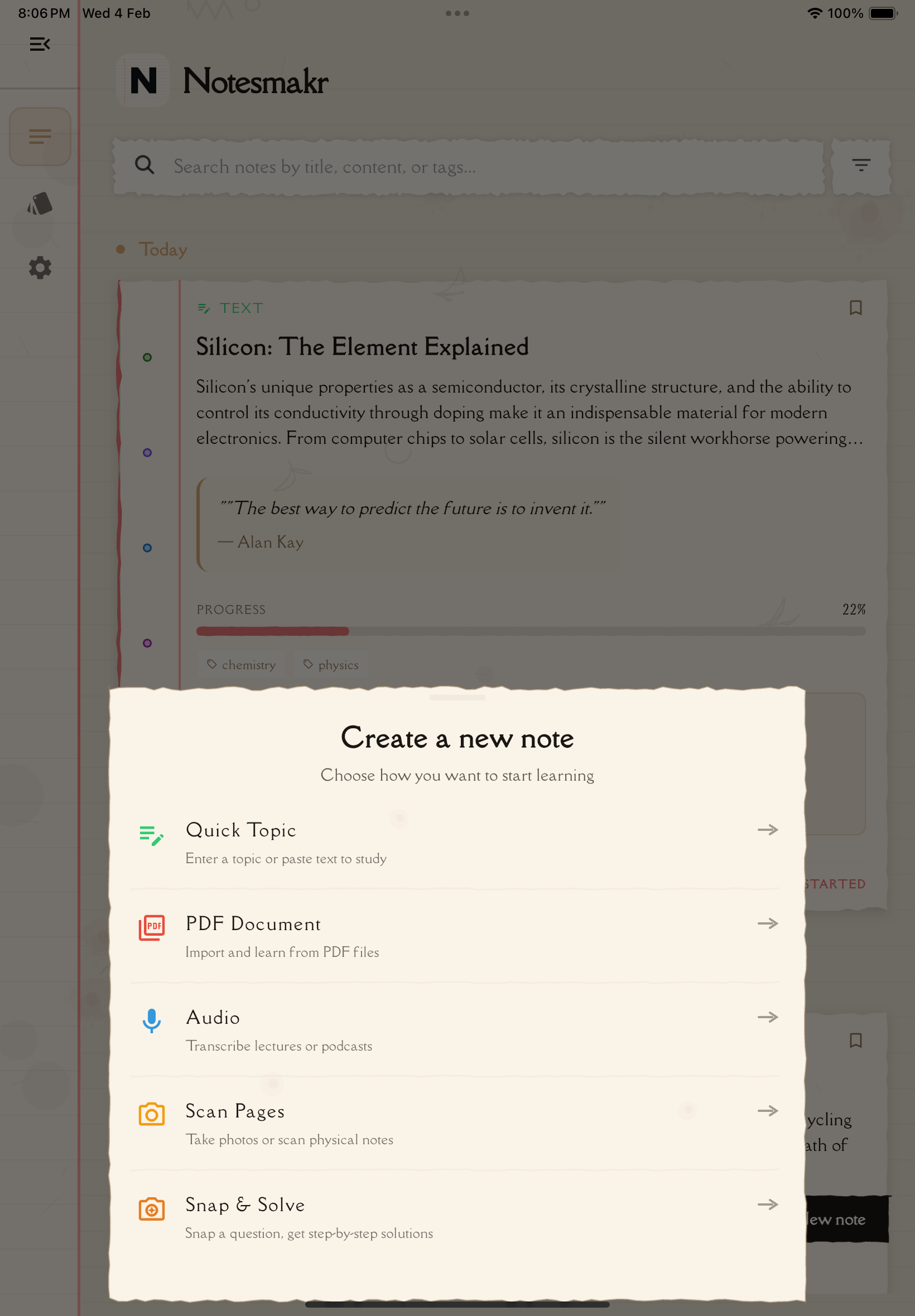
The Five Creation Methods
Each method is designed for different types of content. Choose the one that matches your source material:
1. PDF Notes
Best for: Textbooks, research papers, lecture slides, ebooks
Upload a PDF document and let AI extract, summarize, and organize the content into study-ready notes with key concepts, definitions, and examples.
Learn how to create PDF notes →
2. Audio Notes
Best for: Recorded lectures, podcasts, audiobooks, voice memos
Upload an audio file or record live and AI transcribes, analyzes, and summarizes the content into structured study notes.
Learn how to create audio notes →
3. Text Notes
Best for: Web articles, personal notes, textbook excerpts, copied text
Type or paste text directly and AI organizes, enhances, and structures it into a complete study note with summaries and key points.
Learn how to create text notes →
4. Scan Notes
Best for: Textbook pages, handwritten notes, whiteboards, printed materials
Take a photo with your camera and AI uses OCR to extract text, then creates structured notes.
Learn how to create scan notes →
5. Snap & Solve
Best for: Math problems, chemistry equations, physics questions, homework assignments
Take a photo of any question and get instant AI-generated step-by-step solutions. Unlike Scan Notes which creates study notes, Snap & Solve focuses on solving individual problems with detailed explanations.
Learn how to use Snap & Solve →
Not sure which method to use? Start with text notes for short content or PDF notes for longer documents. These are the most straightforward and fastest to process.
How AI Creates Your Notes
Regardless of which method you choose, Notesmakr follows the same intelligent process:
AI extracts the raw content from your source:
- PDFs: Text, images, tables, diagrams
- Audio: Speech transcription
- Text: Direct input (enhanced with formatting)
- Scans: OCR text extraction
- Snap & Solve: Problem recognition from photos
AI analyzes the content to identify:
- Main topics and subtopics
- Key concepts and definitions
- Important facts and figures
- Relationships between ideas
- Examples and applications
Following the Feynman Technique, AI breaks down complex ideas into simple, clear explanations using:
- Plain language (no jargon unless necessary)
- Analogies and metaphors
- Step-by-step breakdowns
- Real-world examples
AI organizes the content into a logical structure:
- Clear headings and subheadings
- Bullet points and numbered lists
- Summary sections
- Key takeaways
You can generate supporting study materials from your note:
- Flashcards for key concepts
- Quiz questions for testing
- Mind map for visualizing relationships
The result? A comprehensive note that's easier to understand than the original material, complete with all the tools you need to master it.
Accessing the Creation Menu
To start creating a note:
Tap the Notes icon in the bottom navigation bar.
Look for the New Note button with the pencil icon.
A menu appears with your creation options. Tap the one that matches your content source.
Each method has its own workflow (see individual method pages for details).
AI processes your content (usually 30 seconds to 2 minutes depending on length).
Once complete, your note appears in the Notes tab ready to study!
Processing Time
How long does it take to create a note?
Typical processing times:
- Text notes: 10-30 seconds
- PDF notes: 30 seconds - 2 minutes (depends on length)
- Audio notes: 1-4 minutes (transcription + processing)
- Scan notes: 20-60 seconds (OCR + processing)
- Snap & Solve: 15-45 seconds (problem recognition + solution)
Factors affecting speed:
- Content length: Longer content takes more time
- Server load: Peak times may be slightly slower
- Internet connection: A stable connection ensures smooth processing
Comparison: When to Use Which Method
Here's a quick decision guide:
| Your Source | Best Method | Why |
|---|---|---|
| Textbook chapter | Preserves structure, diagrams, and formatting | |
| Podcast episode | Audio | Transcribes speech accurately |
| Web article | Text | Quick copy-paste, instant processing |
| Printed textbook | Scan | OCR extracts text from photos |
| Handwritten notes | Scan | Digitizes handwriting via OCR |
| Math problems | Snap & Solve | Instant step-by-step solutions |
| Chemistry equations | Snap & Solve | Breaks down reactions and formulas |
| Physics questions | Snap & Solve | Detailed problem-solving explanations |
| Personal thoughts | Text | Type freely, AI structures it |
| Lecture recording | Audio | Transcribes the entire lecture |
Pro tip: Combine methods! For example, create a PDF note from lecture slides, then add audio notes from the live lecture recording. Both become searchable in one place.
Best Practices for Creating Great Notes
Follow these tips to get the best results from AI:
1. Quality Source Material
- PDFs: Use searchable PDFs (not scanned images) when possible
- Audio: Record in quiet environments with good microphone placement
- Text: Include complete sentences and paragraphs (not just keywords)
- Scans: Good lighting, flat pages, minimal glare
2. Optimal Length
- Sweet spot: 1,000 - 5,000 words or 10-30 minutes of content
- Too short: Less than 500 words may not generate enough study material
- Too long: Over 10,000 words takes longer and may be better split into multiple notes
It's better to create multiple focused notes than one giant note covering everything. Smaller notes are easier to study and review.
3. Clear Titles and Context
After AI processes your content, give it a clear, descriptive title:
- "Cell Biology: Mitochondria and ATP Production"
- "JavaScript: Understanding Closures and Scope"
Good titles help you find notes later and make sharing easier.
4. Add Tags Immediately
Tag your notes right after creation:
- Subject tags (e.g., "Biology", "Chemistry")
- Course tags (e.g., "BIO101", "CS50")
- Topic tags (e.g., "Exam Prep", "Difficult Concepts")
Tags make organization effortless as your collection grows.
5. Review and Edit
AI is smart, but not perfect. After creation:
- Skim through the note to ensure accuracy
- Add any missing information the AI overlooked
- Fix any misinterpretations
- Enhance with your own insights
Troubleshooting Common Issues
"Processing failed" error
Causes:
- Content is too long
- Source file is corrupted
- Network connectivity issues
Solutions:
- Split large content into smaller chunks
- Try a different source file
- Ensure stable internet connection
"Unsupported file format"
Causes:
- File type not supported
- File is password-protected
- File is corrupted
Solutions:
- Convert to supported format (PDF, MP3, WAV, etc.)
- Remove password protection
- Try re-downloading or re-exporting the file
"Limit reached"
Solutions:
- Upgrade your plan for more note creation capacity
- Wait for your limit to reset
Low quality notes generated
Causes:
- Source material is unclear or poorly structured
- Audio quality is very poor
- Scan image is blurry or skewed
- Content is too technical or specialized
Solutions:
- Use higher quality source material
- Re-record audio in quieter environment
- Retake scan photos with better lighting
- Add context by editing the note afterwards
Remember: AI is a tool to accelerate learning, not replace it. Always review generated notes, fill in gaps, and make them your own. The process of engaging with the material—even AI-generated material—helps you learn!
What's Next?
Ready to create your first note? Dive into the method that matches your content:
Or learn how to study your notes effectively: