Language Settings
Change the app interface language including full RTL support for Hebrew
Notesmakr supports multiple languages for the app interface and AI-generated content. Language settings let you customize your learning experience to match your native language or study goals.
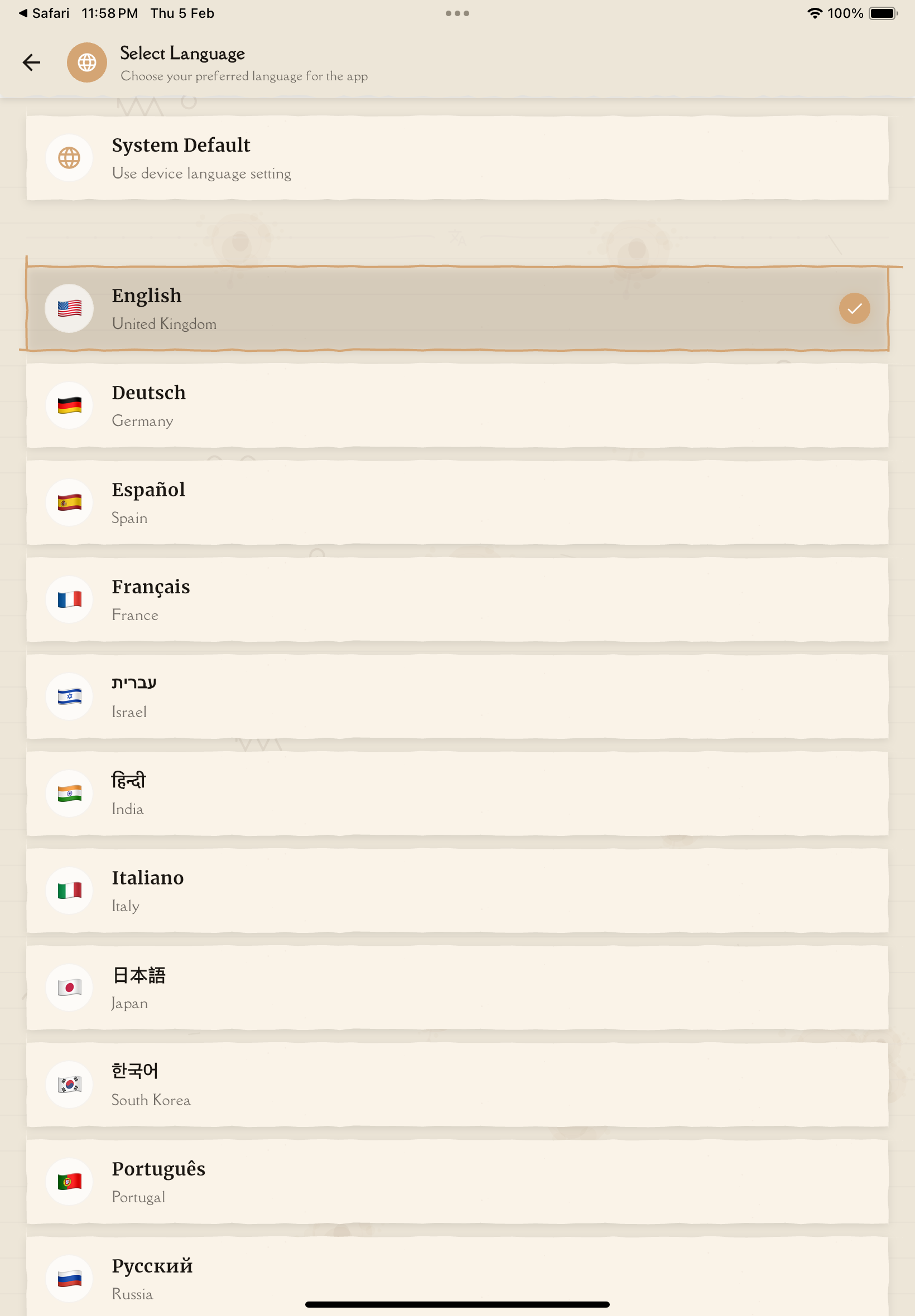
Accessing Language Settings
To change your language:
Tap the menu (☰ or ⚙️) and select "Settings".
In the My Account section, tap "Language".
Choose from System Default or one of the supported languages.
The app interface updates immediately to your selected language—no restart required.
Supported Languages
Notesmakr currently supports 14 languages plus System Default:
System Default
- Follows your device's system language
- Best option if your device is already set to your preferred language
- Automatic language detection
English
- Default language
- Full app interface and AI content generation support
Deutsch (German)
- Full interface support
- AI content generation in German
Español (Spanish)
- Full interface support
- AI content generation in Spanish
Français (French)
- Full interface support
- AI content generation in French
עברית (Hebrew)
- Full RTL (Right-to-Left) interface support
- UI layout mirrors completely (menus, buttons, navigation)
हिन्दी (Hindi)
- Full interface support
- AI content generation in Hindi
Italiano (Italian)
- Full interface support
- AI content generation in Italian
日本語 (Japanese)
- Full interface support
- AI content generation in Japanese
한국어 (Korean)
- Full interface support
- AI content generation in Korean
Português (Portuguese)
- Full interface support
- AI content generation in Portuguese
Русский (Russian)
- Full interface support
- AI content generation in Russian
தமிழ் (Tamil)
- Full interface support
- AI content generation in Tamil
简体中文 (Chinese Simplified)
- Full interface support
- AI content generation in Simplified Chinese
繁體中文 (Chinese Traditional)
- Full interface support
- AI content generation in Traditional Chinese
Don't see your language? We're always expanding language support. Contact support at [email protected] to request a new language!
What Language Settings Control
Changing your language affects both the interface and AI-generated content:
App Interface
- Menus and buttons
- Settings screens
- Navigation labels
- Help text and tooltips
- Error messages and prompts
AI-Generated Content
- Study note simplifications
- Flashcard questions and answers
- Quiz questions and explanations
- Mind map labels and structure
- All AI-generated text matches your selected language
When you change language, the entire app experience updates—both interface and AI content generation. Your existing notes remain in their original language.
Changing Your Language
Go to Settings → My Account → Language.
You'll see:
- System Default (follows device language)
- English
- Deutsch (German)
- Español (Spanish)
- Français (French)
- עברית (Hebrew)
- हिन्दी (Hindi)
- Italiano (Italian)
- 日本語 (Japanese)
- 한국어 (Korean)
- Português (Portuguese)
- Русский (Russian)
- தமிழ் (Tamil)
- 简体中文 (Chinese Simplified)
- 繁體中文 (Chinese Traditional)
Each language displays with its native name and flag.
Tap the language you want to use.
The app interface updates instantly—no restart or confirmation needed.
Check that menus, buttons, and settings display in your chosen language. If RTL language (Hebrew), verify layout has mirrored.
Right-to-Left (RTL) Language Support
Hebrew (עברית) — Full RTL Support
Notesmakr provides comprehensive RTL support for Hebrew:
What Changes in RTL Mode:
- Text direction — Right-to-left reading and writing
- UI layout mirrors — Menus, buttons, navigation move to right side
- Swipe directions — Gesture controls reverse
- Icon mirroring — Directional icons (arrows, back buttons) flip
- EdgeInsets — Padding and margins adjust directionally
- Positioned elements — All positioning becomes direction-aware
What Stays Left-to-Right:
- Numbers — Always LTR (123, not 321)
- Acronyms — PDF, URL, API remain LTR
- Code blocks — Programming code stays LTR
- Screen reader announcements — Semantic content over visual direction
Syncing Language Preferences
Language settings sync automatically across devices:
Local Storage: Saved to your device for quick access
Cloud Sync: Synced to your user profile in the cloud
Cross-Device: Your language preference applies to all devices where you're logged in
Auto-Apply: Changes propagate within seconds to minutes
Change language once on any device, and it will automatically update on your phone, tablet, and other logged-in devices!
Mixed-Language Usage
Using Different Languages for Different Notes
You can create notes in any language regardless of your interface language:
Example 1: Language Learning
- Interface: English
- Study note: French vocabulary (typed in French)
- Personal annotations: English explanations
Example 2: Bilingual Student
- Interface: Hebrew (RTL)
- Study notes: English materials (LTR content)
- Annotations: Mix of Hebrew and English
How it works:
- Interface language affects menus and buttons
- Note content language is independent—type in any language
- AI generates content in the language of your source material
- Annotations can be in any language
Best Practices
Using System Default
- Best for: Users whose device is already set to a supported language
- Advantage: Automatic language detection—no manual configuration
- Works well: If your device is set to any of the 14 supported languages (English, German, Spanish, French, Hebrew, Hindi, Italian, Japanese, Korean, Portuguese, Russian, Tamil, Chinese Simplified, or Chinese Traditional)
Setting a Specific Language
- Best for: Users who want consistent language regardless of device settings
- Advantage: Language stays the same even if you change device language
- Use case: Device in English, but you prefer Hebrew interface
For RTL Users (Hebrew)
- Mobile: Full RTL support on both iOS and Android
For Multilingual Students
- Interface language doesn't restrict note content language
- Create notes in any language
- Annotations can mix languages freely
- AI adapts to your source material's language
Switching Languages
- Change anytime without losing data
- All notes remain accessible in their original language
- Interface updates immediately
- AI-generated content adapts to new language for future notes
Don't hesitate to experiment with languages! Switching won't affect your existing notes—they remain in their original language. Only new AI-generated content will be in the new language.
Next Steps
Now that you've configured your language:
- Study Settings — Configure study tool defaults
- Create Your First Note — Start studying in your language
- Annotations — Add annotations in any language