Taking a Quiz
Answer questions and review your results effectively
Taking a quiz in Notesmakr is your moment to test what you've learned. The interface is designed to be clear, focused, and distraction-free—helping you concentrate on demonstrating your knowledge.
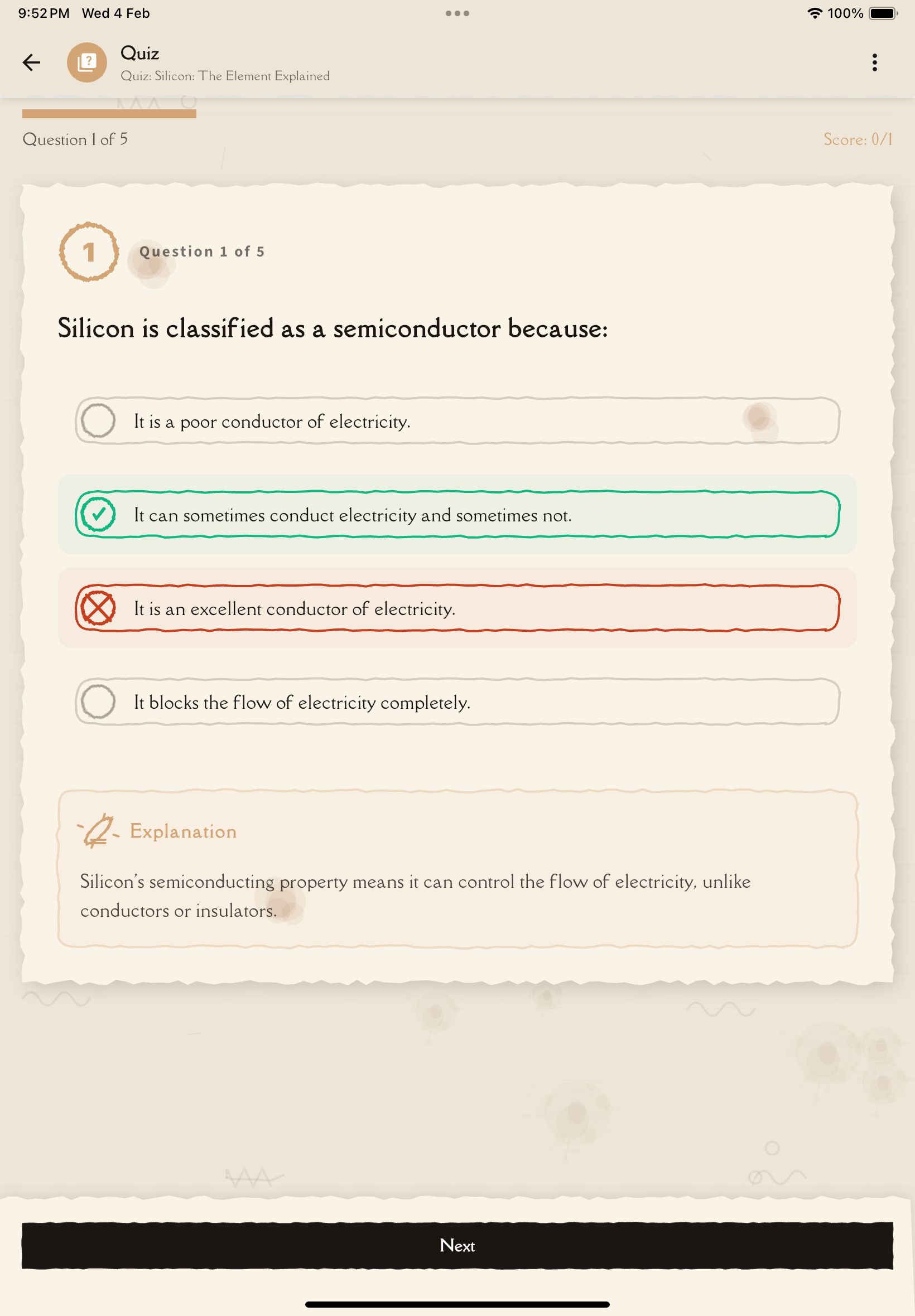
Starting a Quiz
From the quiz list or Study Tools tab, tap the quiz you want to take.
Before starting, you'll see:
- Number of questions
- Previous best score (if retaking)
Tap Start Quiz when ready.
Quiz Interface
Question Display
Question number: "Question 5 of 15" shows your progress
Question text: Clearly formatted, easy to read
Answer options: Four multiple choice options (A, B, C, D)
Progress Tracking
Progress bar: Visual indicator at top showing how many questions you've completed
Navigation
Next/Previous: Navigate between questions
Submit button: Appears when you're ready to finish
Answering Questions
All questions are multiple choice with four options and one correct answer.
Make sure you understand what's being asked before looking at the options.
Don't pick the first answer that seems right—read all four options.
Cross out obviously incorrect options mentally to narrow choices.
Tap the option you believe is correct. Selected option highlights.
Tap a different option to change your answer before moving on.
Tips:
- Watch for "all of the above" or "none of the above"
- Longest answer is sometimes correct (but not always!)
- Trust your first instinct unless you're certain it's wrong
Don't stress about getting stuck! Move on and come back with fresh eyes after answering easier ones.
Revise Mode (Tablet)
On tablets in landscape orientation, you can enable Revise Mode to study alongside your quiz:
- Tap the Revise Mode toggle button
- Your note content appears on the right side of the screen
- Quiz questions remain on the left
- Read through your notes while answering questions
This is useful for learning while testing, especially when first studying new material.
During the Quiz
If You're Unsure
Don't panic!:
- Make your best educated guess
- Move on and come back later
- Trust your instinct
Strategies:
- Eliminate obviously wrong options
- Look for clues in question wording
- Recall context from your notes
- Don't overthink—first instinct is often right
Concentration Tips
Stay focused:
- Find quiet environment
- Turn off notifications
- Read questions twice if needed
If stuck:
- Take a deep breath
- Move on to the next question
- Don't let one question derail entire quiz
- Remember: it's a learning tool, not a final exam
Submitting the Quiz
Work through all the questions at your own pace.
Tap Submit Quiz when you've answered all questions.
Results screen appears immediately showing your score and breakdown.
Once submitted, you can't change answers! Double-check if unsure, or just submit—you can always retake the quiz later.
Results Screen
Overall Performance
Score: Percentage and fraction (e.g., "13/15 - 87%")
Pass/Fail indicator: Based on 70% threshold
Time taken: How long you spent on the quiz
Question Breakdown
Color-coded results:
- Green: Correct answer
- Red: Incorrect answer
For each question:
- Your answer
- Correct answer
- Explanation of why the correct answer is right
Understanding Explanations
Each question includes a detailed explanation:
Why correct answer is right:
- Key concept explanation
- Reference to note content
Why your answer was wrong (if applicable):
- Common misconception
- What you might have confused
- How to remember correctly
After the Quiz
Save Results
Results are automatically saved:
- View anytime from quiz list
- Compare attempts over time
- Track improvement
Next Steps Based on Score
80-100% (Excellent):
- You've mastered this material!
- Retake in 1-2 weeks to ensure retention
- Generate a harder quiz for challenge
- Move on to next topic
60-79% (Good):
- Solid understanding, some gaps
- Review missed questions' explanations
- Retake in 2-3 days
- Use Q&A for confusing concepts
Below 60% (Needs Work):
- Re-read the note carefully
- Focus on fundamentals
- Use flashcards to build foundation
- Retake after thorough review
Tips for Better Quiz Performance
Quiz-taking best practices:
- Read carefully: Misreading causes many mistakes
- Don't rush: Take time to think
- Use process of elimination: Narrow choices systematically
- Trust first instinct: Unless you're certain it's wrong
- Answer all questions: Educated guess > blank
- Learn from mistakes: Read all explanations, not just wrong answers
- Retake strategically: Space retakes for maximum retention
- Use Revise Mode: On tablets, study your notes alongside the quiz
Troubleshooting
Quiz won't submit
Possible causes:
- Unanswered questions
- Network connectivity issue
Solutions:
- Check for unanswered questions
- Verify internet connection
- Try submitting again
- Contact support if persistent
Want to change answer after submitting
Not possible once submitted.
Alternative:
- Review explanation to understand correct answer
- Make note for future
- Retake quiz to apply new knowledge
What's Next?
Master quiz-taking:
Keep testing, keep learning, keep improving!