Flashcards Tab
Master active recall with AI-generated flashcard decks organized for spaced repetition
The Flashcards tab is your dedicated space for active recall practice—one of the most effective learning techniques backed by science. Here you'll find all your flashcard decks generated from your notes, organized for optimal review.
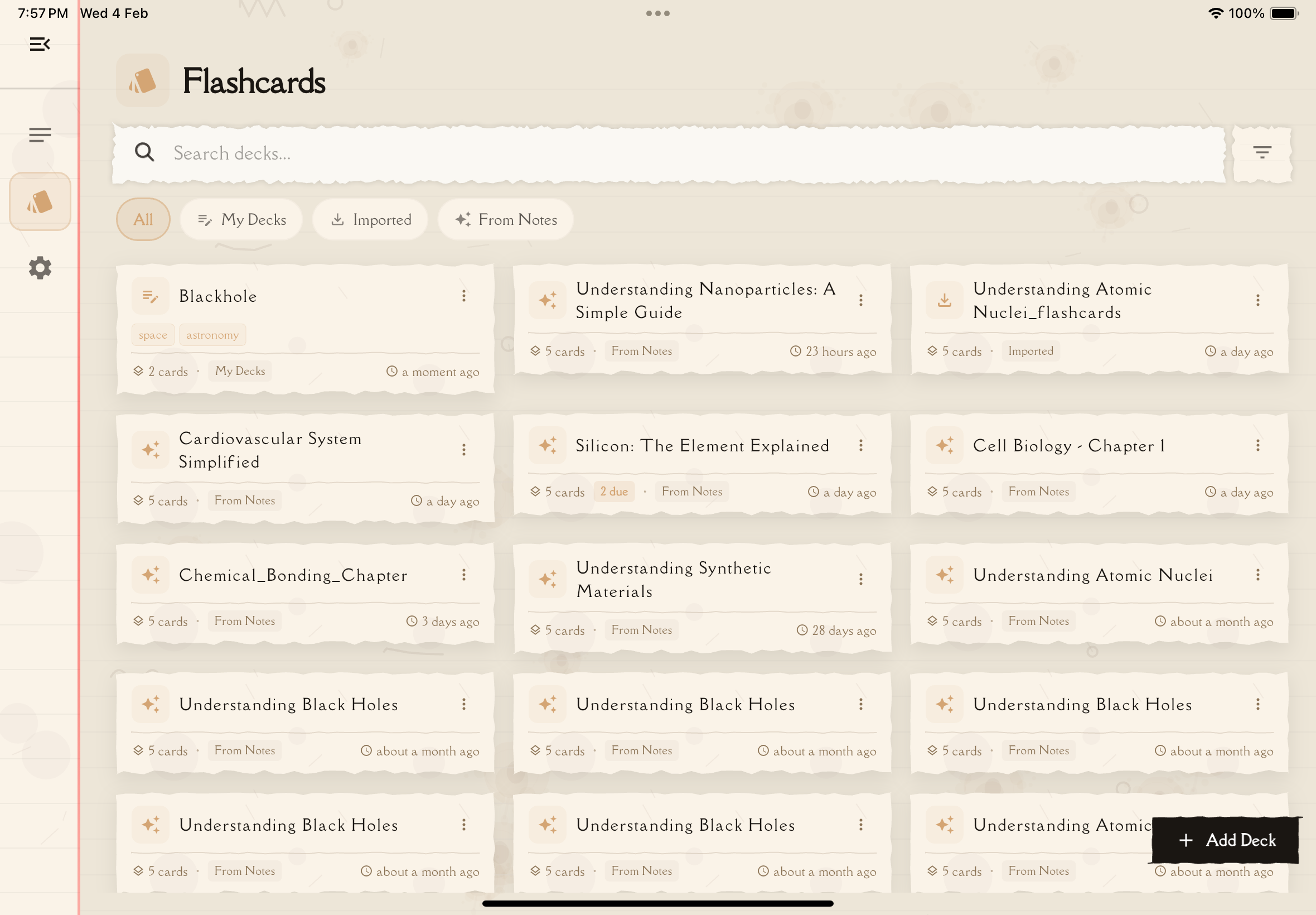
What You See
The Flashcards tab displays your flashcard decks as deck cards in a scrollable list. Each deck corresponds to a note and contains AI-generated question-answer pairs.
Deck Card Anatomy
Each deck card shows:
Deck Name: Matches the title of the original note
Card Count: Total number of flashcards in this deck (e.g., "24 cards")
Cards Due: A badge showing the number of cards ready for review (when cards are due)
Last Updated: When this deck was last modified
Source Badge: Icon showing how the deck was created (from study guide, manual, or imported)
Tags: Tags inherited from the original note
Shared Indicator: Shows if this deck has been shared
The "cards due" count is based on spaced repetition algorithms. Cards you got wrong appear more frequently, while mastered cards appear less often.
Understanding Flashcard Decks
How Decks Are Created
Flashcard decks can be created in several ways. The most common is AI generation — from your study note, tap the Flashcards tab and then "Generate Flashcards". The AI:
- Identifies key concepts and facts from your note
- Creates question-answer pairs covering the material
- Organizes them into a deck linked to the note
You can also create decks manually or import them from external files.
Deck Types
Flashcard decks can be created in different ways:
- From Study Guide: Automatically generated when you create a note — the AI identifies key concepts and creates question-answer pairs
- Manual: Cards you create yourself by adding them directly to a deck
- Imported: Decks imported from external files (CSV or Anki .apkg format)
Starting a Study Session
There are several ways to start reviewing flashcards:
Quick Study
Tap any deck card to start a study session immediately. You'll review the cards in the deck and rate your confidence on each one.
Due for Review Filter
At the top of the Flashcards tab, you can toggle the "Due for Review" filter to show only decks that have cards scheduled for review based on spaced repetition. Each deck card shows a badge with the number of due cards when applicable.
Consistency beats intensity! Reviewing 20 cards daily is more effective than cramming 140 cards once a week.
Spaced Repetition Explained
Notesmakr uses spaced repetition to optimize your review schedule. Here's how it works:
When you first see a card, you'll review it again soon (within 1 day) to reinforce the memory.
Each time you answer correctly, the next review is scheduled further in the future (1 day → 3 days → 1 week → 2 weeks, etc.).
If you get a card wrong, it goes back to frequent review so you can master it.
Cards you consistently get right are reviewed less often, freeing up time for difficult material.
This scientifically-proven technique ensures you review information right before you're about to forget it—maximizing retention with minimal effort.
Flashcard Study Interface
When you start a study session, you enter the flashcard study interface:
Card Display
- Front: Shows the question
- Back: Shows the answer (tap to flip and reveal)
Review Actions
After seeing the answer, rate your confidence using the 5-level scale:
- Not at all (😟): Don't remember at all — card resets to frequent review
- A little (😕): Barely recalled — card resets to frequent review
- Somewhat (😐): Partially recalled — interval advances slowly
- Pretty good (😊): Recalled with some thought — interval advances normally
- Mastered (😎): Instant recall — interval advances significantly
Your confidence rating determines when you'll see the card again based on spaced repetition.
Progress Indicators
- Cards remaining: Shows progress through the current session
- Session progress bar: Visual indicator at the top
- Navigation buttons: Previous/Next arrows to move between cards
Be honest with your ratings! Rating cards as "Easy" when you struggled won't help you learn—you'll just see them less often and forget them.
Organizing Flashcard Decks
As your collection grows, organization becomes important:
Search
Tap the search icon to find decks by name.
Filters
Use the filter options to narrow down your decks:
- Due for Review: Toggle to show only decks with cards ready for review
Tags
Decks inherit tags from their source notes. Use tags to group related decks (e.g., "Chemistry", "Midterm Prep", "Hard Topics").
Deck Actions
Each deck card supports various actions:
Tap to Study
Tap a deck card to start a standard study session with due and new cards.
Swipe Actions
Swipe left on a deck card to reveal:
- Delete: Remove this deck (the original note remains intact)
Flashcard Statistics
Each deck tracks your study attempts and performance:
Attempt History
- Attempt count: How many times you've studied this deck
- Best confidence: Your highest average confidence score from completed sessions
- Confidence rating: Color-coded performance indicator:
- Excellent (green): Average confidence 4.0+
- Good (blue): Average confidence 3.0+
- Fair (amber): Average confidence 2.0+
- Needs Review (red): Average confidence below 2.0
Session Tracking
- Cards studied: Number of cards rated per session
- Average confidence: Mean of all confidence ratings in a session
- Time spent: Duration of each study session
Study tip: Aim for consistent study sessions rather than cramming. Review decks regularly to keep your confidence scores high and take advantage of spaced repetition.
Custom Flashcards
While AI generates flashcards automatically, you can also create your own:
Adding Cards Manually
From the Flashcards tab, tap the deck you want to add to.
Look for the + Add Card button (usually at the bottom or in the menu).
Type the question (front) and answer (back). You can format text with bold, italics, bullet points, etc.
Tap Save. Your new card joins the deck and will appear in your next study session.
Editing Existing Cards
- Browse the deck (tap deck → Browse Cards)
- Tap the card you want to edit
- Tap the edit icon (pencil)
- Modify the question or answer
- Save changes
Deleting Cards
While browsing a deck:
- Swipe left on a card
- Tap Delete
- Confirm deletion
Or during a study session:
- Tap the menu icon (⋮)
- Select Delete Card
Deleting a card removes all its review history and cannot be undone.
Flashcard Settings
Customize how flashcards work for you:
Go to Settings → Study Settings to adjust flashcard-related preferences. The spaced repetition algorithm (SM-2) handles scheduling automatically based on your confidence ratings.
Offline Flashcard Study
Flashcards work fully offline! You can:
- Review all downloaded decks without internet
- Rate cards (progress syncs when you reconnect)
- Add new custom cards (sync later)
The only thing you can't do offline is generate new decks from notes (that requires AI processing).
Flashcard Best Practices
Tips for effective flashcard study:
- Study daily: Even 10-15 minutes daily beats long weekly cramming
- Be honest with ratings: Don't inflate your performance
- Don't skip reviews: Trust the algorithm—due cards are due for a reason
- Add context: If a card is confusing, edit it to add clarifying details
- Use images: Visual aids dramatically improve retention
- Break down complex cards: One concept per card works best
- Say answers out loud: Engages more of your brain than just thinking
- Review before bed: Sleep consolidates memory—nighttime review is powerful
Common Questions
Q: Can I import flashcard decks? A: Yes! You can import flashcard decks from CSV files or Anki packages (.apkg) into Notesmakr.
Q: Why do some cards appear so often? A: Cards you struggle with appear more frequently until you master them. This is intentional!
Q: Can I share decks with study partners? A: You can export decks as CSV or Anki-compatible files and share those with others.
Q: What happens if I skip a day? A: Due cards accumulate. Don't worry—the algorithm adjusts. Just resume your routine.
Q: Can I change card order during a session? A: The order is optimized by the algorithm, but you can enable "Shuffle" in settings for random order.
What's Next?
Master the art of active recall:
Ready to ace your studies with spaced repetition!