Note Study Page
Navigate the three-tab study interface to master your notes
Note Study Page
The note study page is your command center for learning. It features a three-tab interface that gives you everything you need: a quick overview, full reading content, and powerful study tools—all in one place.
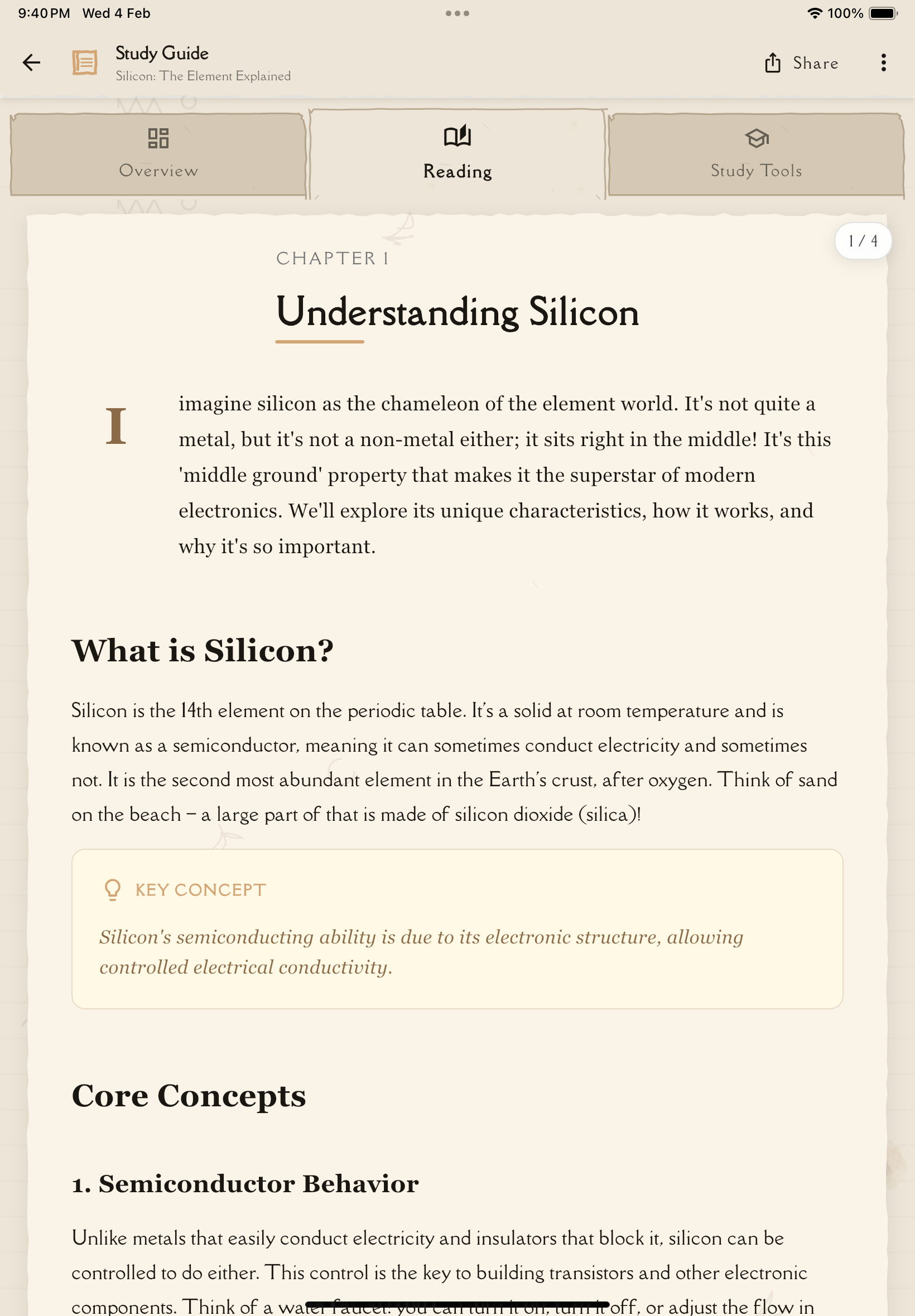
The Three-Tab Interface
Tab 1: Overview
Your note's at-a-glance information and quick access point.
What you see:
Comprehension Meter: A visual progress bar showing your understanding level of the note, color-coded by mastery:
- Expert (75-100%): Green
- Advanced (50-74%): Blue
- Intermediate (25-49%): Orange
- Beginner (0-24%): Red
Summary Card: High-level overview of the note (2-3 sentences capturing the main idea)
Key Concepts List: Numbered badges highlighting the most important ideas, definitions, and takeaways
Tags: Subject, topic, and custom tags displayed with color-coded badges
Metadata:
- Word count
- Estimated reading time
- Study time
- View count
Actions (via the app bar):
- Share: Share note via the system share sheet
- More options (⋮ menu):
- Bookmark / Remove Bookmark
- Export to PDF
- Edit title
- Delete note
The Overview tab is perfect for quick refreshers before exams or when deciding which note to study next. Skim the summary and key concepts to jog your memory in just 1-2 minutes.
Tab 2: Reading
Full note content organized into readable pages.
What you see:
Paginated Content: Your note is split into digestible "pages" (similar to a book)—perfect for focused reading without overwhelming.
Navigation:
- Swipe left/right: Move between pages
- Tap edges: Jump to previous/next page
- Page indicator: Shows your current position (e.g., "Page 5 of 24")
Annotations:
- Highlight: Select text and highlight it in different colors and styles
- Typed notes: Add typed annotations linked to specific text
- Voice notes: Record audio annotations
- Handwritten notes: Draw or write by hand (platform-dependent)
Reading mode uses paginated content to prevent overwhelm. Research shows that breaking content into smaller chunks improves comprehension and retention. Don't skip pages—each builds on the previous!
Tab 3: Study Tools
Interactive tools for active learning and testing.
What you see:
Four Study Tools displayed as cards:
Flashcards
- Generate flashcards from this note
- View previously generated flashcard decks
- Tap to start a review session
Quiz
- Generate quizzes from this note
- View past quiz attempts
- Tap to take or review a quiz
Q&A Session
- Chat interface for asking AI questions about the note content
- Tap to start a new conversation
Mind Map
- Visual concept map of the note's key ideas
- Tap to explore the full interactive map
Annotations are integrated directly into the Reading tab! Add typed, handwritten, or voice annotations right alongside your study content.
Using the Overview Tab
Quick Review Strategy
When you need a fast refresher:
See your understanding level at a glance. Expert? You're in good shape. Beginner? Time for a study session.
Spend 30 seconds reading the high-level overview. Does it sound familiar?
Look through the numbered badges. Can you explain each one?
Before Studying
Use Overview to plan your session:
- Low comprehension? → Start with the Reading tab
- Haven't reviewed flashcards? → Focus on flashcards
- Haven't taken a quiz yet? → Try a quiz to test understanding
- High comprehension? → Just do a quick flashcard review
Actions Explained
Share:
- Share your note via the system share sheet
- Others can view your shared note
- Great for study groups
Export:
- PDF: Export your note as a formatted PDF document for printing or offline reading
Bookmark:
- Toggle bookmark on the note from the more options menu
- Bookmarked notes are easy to find later in your Notes tab
Edit Title:
- Change the note's title from the more options menu
Using the Reading Tab
First-Time Reading
Approach a new note this way:
Don't skip around—follow the logical flow AI created.
Don't just passively scan. Pause after each section and ask: "Do I understand this?"
Select text and mark it with a highlight. You'll review these later.
Annotations
The reading tab supports a rich annotation system to help you engage with the content:
How to access annotations and formatting:
- Long-press on text to select it
- A context menu appears with two types of options:
Formatting options (mark text visually):
- Highlight: Background color (Yellow, Blue, Green, Pink)
- Underline: Underlined text
- Strike: Strikethrough text
Annotation options (add deeper explanations):
- Typed Note: Add a written annotation linked to the selected text
- Handwritten Note: Draw diagrams or write by hand
- Voice Note: Record an audio explanation
All formatting and annotation options appear in the same context menu when you long-press text. Use different highlight colors to categorize information as you read: Yellow for general notes, green for must-remember concepts, blue for things you need to look up, and pink for areas to revisit before exams.
Navigation Tips
Swipe Navigation:
- Swipe left: Next page
- Swipe right: Previous page
- Works in both LTR and RTL languages (automatically mirrored)
Tap Navigation:
- Tap the left or right edges of the screen to move between pages
The page automatically scrolls to the top when you navigate to a new page, and a page indicator shows your current position.
The first time you open a note, you'll see a swipe hint animation showing you how to navigate between pages.
Using the Study Tools Tab
Study Tool Selection Guide
Flashcards - Use when:
- You need to memorize facts, definitions, formulas
- You have 5-30 minutes for active recall practice
- You want to improve retention through spaced repetition
- You're reviewing content you've already read
Quiz - Use when:
- You want to test comprehensive understanding
- You're preparing for an exam with similar question formats
- You need to identify weak areas across the entire note
- You have 10-30 minutes for focused testing
Q&A Session - Use when:
- You have specific questions about the content
- Something confuses you and you need clarification
- You want to explore a topic deeper
- You're preparing discussion points for class
Mind Map - Use when:
- You need to understand how concepts relate
- You're a visual learner
- You want to see the "big picture" structure
- You're connecting ideas from multiple notes
Recommended Study Flow
For thorough mastery, use tools in this order:
- Reading Tab (first time through)
- Flashcards (test initial retention)
- Reading Tab (review areas you struggled with, add annotations)
- Quiz (comprehensive test)
- Q&A (clarify any confusing points)
- Mind Map (see connections)
- Reading Tab (add annotations explaining concepts in your own words)
- Flashcards (final review)
This flow mirrors the Feynman Technique: Learn → Test → Identify Gaps → Fill Gaps → Simplify.
Comprehension Tracking
The comprehension meter on the Overview tab gives you a clear picture of how well you know the material.
Understanding Levels
| Level | Range | Color | What It Means |
|---|---|---|---|
| Beginner | 0-24% | Red | Just getting started — keep studying |
| Intermediate | 25-49% | Orange | Building understanding — review weak areas |
| Advanced | 50-74% | Blue | Good grasp — polish with quizzes and flashcards |
| Expert | 75-100% | Green | Strong mastery — maintain with periodic review |
Metadata Tracked
The Overview tab displays:
- Word count: Total words in the note
- Reading time: Estimated time to read through
- Study time: How long you've spent studying this note
- View count: Number of times you've opened this note
Annotations
Add your own thoughts and explanations directly in the Reading tab:
Adding Annotations
Tap the Reading tab to view your study content.
Long-press on the text you want to annotate. A context menu will appear with formatting and annotation options.
The context menu shows:
- Formatting options: Highlight, Underline, Strike (to mark important text)
- Annotation options: Typed Note, Handwritten Note, Voice Note
Select the annotation type you want to create:
- Typed Note: Write explanations, examples, or questions
- Handwritten Note: Sketch diagrams or write by hand
- Voice Note: Record audio explanations
Explain the concept in your own words. Pretend you're teaching someone who knows nothing about it.
Your annotation is saved and appears alongside the study content in the Reading tab.
Why Annotations Matter
According to the Feynman Technique, explaining something in your own words is the ultimate test of understanding.
Benefits:
- Forces you to process information deeply
- Reveals gaps you didn't know you had
- Creates personalized study materials contextually linked to content
- Adds examples relevant to you
- Builds confidence in your knowledge
After using flashcards and quizzes, add annotations in the Reading tab explaining concepts you struggled with. This turns weaknesses into strengths!
Study Best Practices
Get the most from the study interface:
- Follow the flow: Overview → Reading → Tools (don't skip steps)
- Read actively: Highlight, annotate, pause to think
- Test frequently: Use flashcards and quizzes early and often
- Find your gaps: Pay attention to what you get wrong
- Fill those gaps: Use Q&A and re-reading to clarify
- Make it yours: Add personal notes with your own explanations
- Use mind maps: See how everything connects
- Review in sessions: Multiple short sessions beat one long marathon
- Track comprehension: Check your meter to stay motivated
- Space it out: Return to notes over days and weeks, not all at once
What's Next?
Explore specific study tools in depth:
Or explore related features: