Create & Edit Flashcards
Manually create flashcard decks from scratch or customize AI-generated cards to match your learning style
While AI can generate flashcards automatically, creating and editing flashcards manually gives you complete control over your study materials. The flashcard editor lets you craft perfect question-answer pairs tailored to your learning needs.
Why Edit Flashcards Manually?
Creating or editing flashcards yourself has unique benefits:
- Deeper learning — The act of formulating questions strengthens understanding
- Personalization — Use language and examples that resonate with you
- Focus areas — Emphasize topics you find challenging
- Add mnemonics — Include memory aids that work for you
- Simplify or expand — Adjust complexity to match your current level
Research shows that creating your own flashcards leads to better retention than just studying pre-made cards. The mental effort of formulating questions activates deeper processing!
Creating a New Flashcard Deck
To create a flashcard deck from scratch:
Open the study note you want to create flashcards for and go to the Flashcards tab.
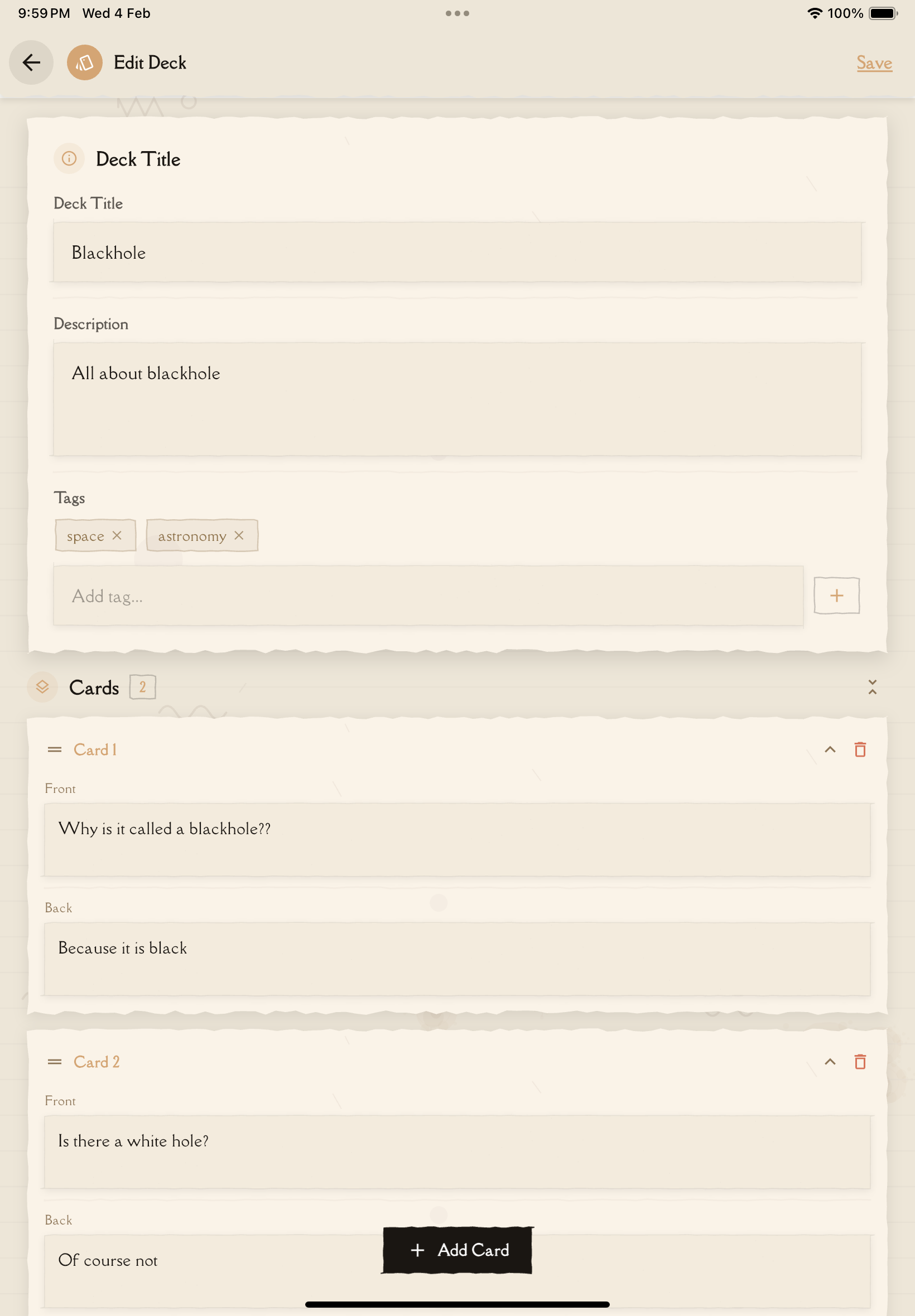
Tap the "Create New Deck" or plus (+) button. This opens the flashcard editor.
You'll see two fields:
- Front — The question or prompt (what you'll see first when studying)
- Back — The answer or explanation (what you'll see after flipping the card)
Type your question on the front and the answer on the back. Keep questions focused and answers concise but complete.
Tap "Add Card" to create additional flashcards. Continue until you've covered all the concepts you want to study.
Tap "Save" or "Done" when finished. Your new flashcard deck is now ready to study!
Editing Existing Flashcards
To modify an existing flashcard deck (whether AI-generated or manually created):
From your flashcard list, tap on the deck you want to edit.
Tap the "Edit" button or pencil icon to enter editing mode.
Tap on any flashcard to edit its content. You can modify both the front (question) and back (answer).
Update the text as needed. You can:
- Rephrase questions for clarity
- Simplify or expand answers
- Fix typos or errors
- Add examples or mnemonics
Tap "Save" to keep your edits. Changes take effect immediately in your study sessions.
Managing Cards in a Deck
Adding Cards
Tap the "Add Card" button at the bottom of your deck to insert new flashcards at any time.
Deleting Cards
To remove a card:
- Enter edit mode
- Swipe left on the card (or tap the delete/trash icon)
- Confirm deletion
Deleted flashcards cannot be recovered. Make sure you really want to remove them before confirming!
Reordering Cards
To change the order of flashcards:
- Enter edit mode
- Tap and hold on any card
- Drag the card to its new position
- Release to drop it in place
Writing Effective Flashcards
Keep Questions Focused
Bad: "What is photosynthesis, where does it happen, and why is it important?"
Good: Three separate cards:
- "What is photosynthesis?"
- "Where in a plant cell does photosynthesis occur?"
- "Why is photosynthesis important for life on Earth?"
One concept per card! Complex cards are harder to study and don't pinpoint exactly what you don't know.
Make Answers Complete but Concise
Your answer should be thorough enough to stand alone, but short enough to review quickly.
Too brief: "A process"
Too long: A full paragraph from a textbook
Just right: "Photosynthesis is the process plants use to convert light energy into chemical energy (glucose), releasing oxygen as a byproduct."
Use Your Own Words
Don't copy-paste from textbooks. Rephrase concepts in language you naturally use. This ensures you truly understand (not just memorize) and makes recall easier.
Include Context When Needed
If a question could be ambiguous, add context:
Ambiguous: "What does DNA stand for?"
Clear: "In biology, what does DNA stand for?"
Consider Reverse Cards
For some facts, create two cards that test the relationship both ways:
Card 1: "What molecule carries genetic information?" → "DNA" Card 2: "What does DNA do?" → "Carries genetic information"
Deck Settings
When editing a deck, you can also adjust:
Deck Name
Give your deck a clear, descriptive title (e.g., "Biology Chapter 3: Cell Structure" rather than just "Biology")
Tags
Add tags to organize your decks and make them easier to find and filter in the Flashcard Decks List.
Next Steps
Now that your flashcard deck is perfected, it's time to start studying! Learn the most effective techniques for flashcard study sessions and track your progress toward mastery.