Settings & Preferences
Customize your Notesmakr experience with app settings, study preferences, and personalization options
Settings let you personalize Notesmakr to match your learning style, language preference, and workflow. From study defaults to visual customization, you have full control over your experience.
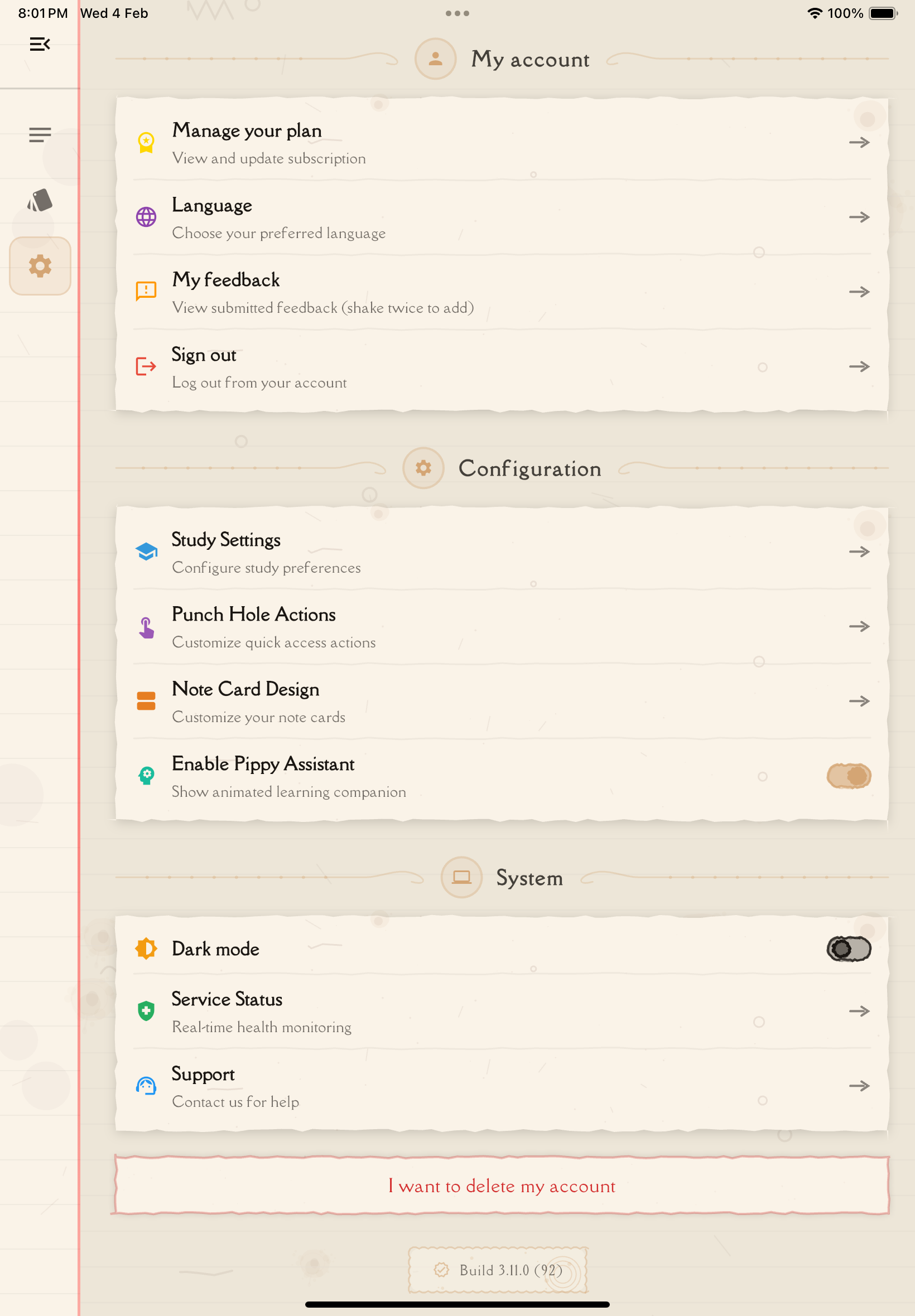
Accessing Settings
To open settings:
Tap the menu icon (☰ or ⚙️) in the main navigation.
Tap "Settings" or "Preferences" from the menu.
You'll see organized categories of settings. Tap any category to explore options.
Settings Categories
Settings are organized into 4 main sections:
My Account
- Manage Plan — View and manage your subscription
- API Keys — Add your own AI service keys (Unlimited plan only)
- Language — Change app language and content generation language
- Feedback — Submit feedback and feature requests
- Sign Out — Log out of your account
Configuration
- Study Settings — Configure quiz and flashcard defaults
- Punch Hole Actions — Customize interactive punch holes on note cards
- Note Card Design — Personalize how note cards appear in lists
- Pippy Assistant — Toggle AI assistant features
System
- Theme — Switch between Light and Dark mode
- Service Status — Check Notesmakr service health
- Support — Contact support via email
- Debug — Developer tools (debug builds only)
User Profile
- Displays your username, email, and avatar
- Read-only display (not editable in settings)
Study Settings
Configure defaults for study tools:
- Quiz generation preferences (question count, difficulty)
- Flashcard study modes (card count, difficulty)
- Annotation settings
Punch Hole Actions
Customize interactive punch holes on note cards:
- 6 configurable punch holes on the left side
- Assign actions: Quiz, Flashcards, Reading, Personal Notes, Mind Map, or None
- Toggle visibility of all punch holes
Note Card Customization
Personalize note card appearance:
- Show/hide card components (8 components available)
- Reorder components by dragging
- Toggle punch holes visibility
- Real-time preview of changes
- Reset to defaults option
Language Settings
Change app language:
- System default (follows device language)
- Manual selection from supported languages
- English, Hebrew (עברית), Chinese Simplified, Chinese Traditional
- Hebrew includes full RTL support
Dark Mode
Visual customization:
- Toggle between Light and Dark themes
- Saves battery on OLED screens
- Persists your preference across sessions
- Located in Settings → System section
API Keys (Unlimited Plan)
Bring Your Own Key (BYOK) for AI services:
- Add API keys from OpenAI, Anthropic, Google AI
- Validated before saving
- Only visible to Unlimited plan subscribers
- Full CRUD operations for managing keys
Feedback & Support
Get help and share ideas:
- Shake device to trigger feedback form
- Draw on feedback canvas
- Record voice feedback
- View feedback history
- Contact support via email
Spend a few minutes exploring settings when you first start using Notesmakr. Customizing the experience to your preferences makes studying more enjoyable and efficient!
Quick Settings Overview
Most Important Settings to Configure
1. Language Set your preferred language for the app interface and AI-generated content. This ensures notes, flashcards, and quizzes match your language.
2. Study Defaults Configure how many flashcards and quiz questions to generate by default. This saves time on every study tool creation.
3. Notifications Enable study reminders and flashcard review alerts to maintain consistent study habits.
4. Theme Choose Light or Dark mode based on your preference and lighting conditions.
5. Note Card Layout Adjust how your notes appear in lists—dense for more items visible, spacious for easier reading.
Personalization Options
Dark Mode
Theme
- Light Mode — Default, bright interface with the classic Notesmakr look
- Dark Mode — Easy on eyes, saves battery on OLED screens
Toggle dark mode from Settings → System section → Dark Mode. Your preference is saved and persists across sessions.

Study Preferences
Default Quiz Settings
- Number of questions (default: 5)
- Difficulty level: Easy, Medium, Hard (default: Medium)
- Currently supports single-choice questions
Default Flashcard Settings
- Number of cards (default: 5)
- Difficulty level: Easy, Medium, Hard (default: Medium)
Annotation Settings
- Configure annotation preferences
- Located within Study Settings page
Privacy & Shared Notes
Shared Note Attribution
When sharing notes, you can control whether to display your name:
- Enable "Show author name" in share settings to display your name publicly
- Leave unchecked to remain anonymous
Settings for shared notes are managed on the share page for each individual note, not in global settings.
Accessibility
Notesmakr is built with accessibility in mind to ensure everyone can learn effectively.
Screen Reader Support
Notesmakr includes comprehensive semantic labels throughout the interface, making it fully compatible with:
- VoiceOver (iOS) — Full support for navigating notes, flashcards, quizzes, and settings
- TalkBack (Android) — Full support with proper element descriptions
All interactive elements — buttons, cards, toggles, progress indicators — include descriptive labels so screen readers can communicate their purpose and state.
Text Scaling
Notesmakr respects your device's system text size settings. If you increase text size in your device's accessibility settings, the app adjusts accordingly.
Right-to-Left (RTL) Support
Full RTL layout support for Hebrew, including:
- Mirrored UI layout (menus, navigation, buttons)
- Reversed reading flow and swipe directions
- Directional icons mirror automatically
Dark Mode
Dark Mode reduces eye strain in low-light environments and saves battery on OLED screens. Toggle it from Settings → System → Dark Mode.
For the best reading experience, combine Dark Mode with your device's built-in text size and display settings. Notesmakr respects your system preferences automatically.
What You'll Find in This Section
Detailed guides for key settings areas:
- Study Settings — Configure quiz and flashcard defaults
- Punch Hole Actions — Customize gesture shortcuts
- Note Card Customization — Personalize note list appearance
- Language Settings — Change app and content language
- API Keys — Use your own AI services (Unlimited plan)
- Feedback — Submit ideas and vote on features
Syncing Settings Across Devices
Settings are automatically synced to the cloud when you're logged in:
What Syncs Automatically
- Study preferences (quiz and flashcard settings)
- Language settings
- Note card customization
- Punch hole actions
- API keys (Unlimited plan)
Storage Details
- Local: Saved to your device for quick access
- Cloud: Synced to your user profile in the cloud
- Sync on Login: Settings load automatically when you sign in
Restoring Default Settings
Want to start fresh?
Reset Note Card Customization The Note Card Design page has a "Reset to Defaults" button to restore default component visibility and order.
Other Settings Individual setting pages may have reset options specific to their category.
Tips for Optimizing Settings
For Battery Life (Mobile)
- Use Dark Mode (OLED screens save power)
- Located in Settings → System → Theme
For Productivity
- Set realistic default quiz/flashcard counts (default: 5)
- Customize punch hole actions for one-tap access to study tools
- Configure note card components to show most relevant information
For Accessibility
- Increase text size in your device's system settings
- Enable Dark Mode for reduced eye strain
- Enable VoiceOver (iOS) or TalkBack (Android) - Notesmakr has full semantic labels
For Privacy
- Don't display authorship on shared notes (uncheck "Show author name" when sharing)
Settings are personal! What works for one learner might not work for another. Experiment to find your perfect configuration.
Next Steps
Explore specific settings areas:
- Study Settings — Optimize study tool defaults
- Language Settings — Change your language
- API Keys — Add your own AI keys (Unlimited)
- Feedback — Share ideas and vote on features
Or return to:
- Getting Started — New user overview
- Study Notes — Creating and managing notes