Hosting a Session
Create and host a real-time group study quiz session for friends and classmates
As the host, you set up the quiz, choose the content source, and control the session flow. Your friends just need a 6-character code to join.
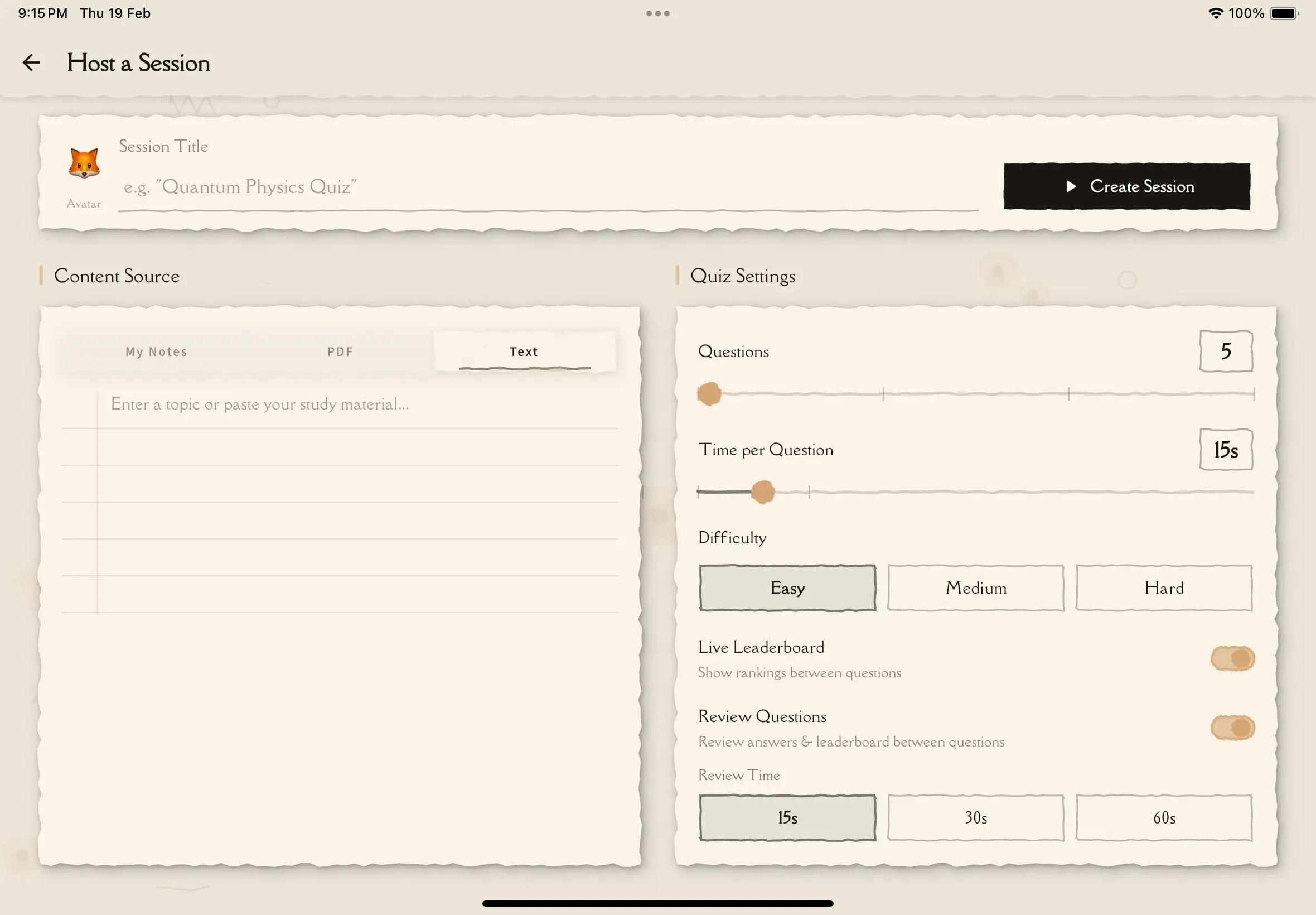
How to Create a Session
Tap the Group Study tab in the bottom navigation (the 3rd tab).
Tap the Host a Session button on the Group Study home screen.
Tap the emoji avatar to pick a fun icon that represents you during the game. This is what participants see next to your name.
Give your session a descriptive name (e.g., "Biology Chapter 5 Review" or "History Final Prep").
Choose where the quiz questions come from. You have three options — see the Content Sources section below.
Adjust the number of questions, time per question, difficulty, and other options. See Quiz Settings below.
Tap the Create Session button at the bottom. You'll be taken to the lobby where participants can start joining.
Content Sources
You can generate quiz questions from three types of content:
My Notes
Pick from your existing study notes. Tap a note to select it — you'll see the note title and source type (PDF, article, etc.). Tap the clear button to choose a different note.
PDF Upload
Upload a PDF file directly. The text is extracted automatically, and you'll see the filename and character count once processing is complete.
Paste Text
Paste or type any text into the text area. This is useful for content from websites, textbooks, or any source you want to quiz on.
Longer, more detailed content produces better quiz questions. Aim for at least a few paragraphs of material for the AI to work with.
Quiz Settings
Number of Questions
Use the slider to choose between 5 and 20 questions. The number displays in the box next to the slider.
Time Per Question
Set the countdown timer between 10 and 60 seconds per question. Shorter times add pressure and excitement, longer times give everyone more time to think.
Difficulty
Choose from three levels:
- Easy — straightforward recall questions
- Medium — requires understanding of concepts
- Hard — application and analysis questions
Live Leaderboard
Toggle this on to show rankings between questions. When enabled, participants see the top 5 scores update after each question.
Review Questions
Toggle this on to show the correct answer and explanation after each question. When enabled, you can also set the review time:
- 15 seconds — quick glance at the answer
- 30 seconds — time to read the explanation
- 60 seconds — thorough review
Start with 10 questions at 20 seconds on Medium difficulty for a balanced experience. Adjust based on your group's comfort level.
Session Limits
- Scholar plan — includes sessions each period as part of your subscription
- Scholar Plus plan — unlimited sessions
- Session packs — available for purchase if you need more sessions
- Free plan — cannot host sessions, but can join sessions hosted by others
If you leave the app or switch away while in the lobby, the session will be cancelled automatically for all participants. Stay in the app until the game starts.
Tips for Great Sessions
- Pick focused content — a single chapter or topic works better than an entire textbook
- Match difficulty to your group — use Easy for intro classes, Hard for advanced review
- Test with a small group first — try hosting with 2-3 friends before a large classroom session
- Enable Review Questions — the explanations after each question turn the game into a learning experience
Next Steps
- The Lobby — learn what happens after you create a session
- Joining a Session — share this with friends who want to join