Joining a Session
Join a group study session using a 6-character code or invite link
Joining a Group Study session takes just a few seconds. All you need is a 6-character code from the host — or a direct link.
Joining from the App
Tap the Group Study tab in the bottom navigation.
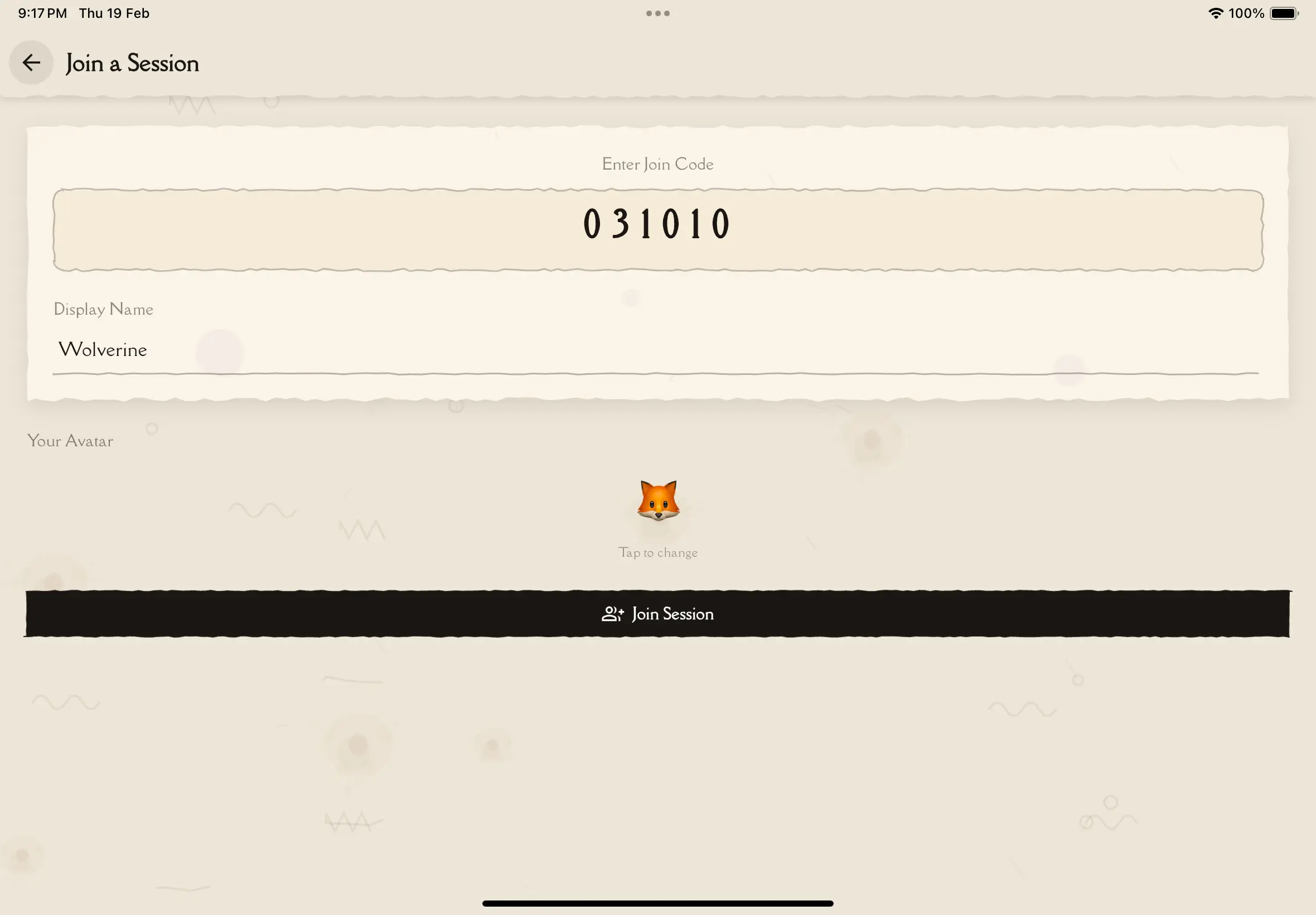
Tap the Join a Session button on the Group Study home screen.
Type the 6-character code the host shared with you. The code is letters and numbers, and it's not case-sensitive.
Type the name you want others to see during the game. Your account name is auto-filled, but you can change it.
Tap the emoji to pick an avatar. This appears next to your name in the lobby and leaderboard.
Tap the Join Session button. You'll be taken to the lobby to wait for the host to start.
Joining via Link
The host can share a direct link (e.g., notesmakr.com/group-study/join/ABC123).
Open the link the host shared. If you have the Notesmakr app installed, it opens directly in the app.
Enter your display name and choose an avatar emoji.
Tap Join Session to enter the lobby.
If you don't have the app installed, the link opens in your web browser. You can play the entire session from the browser — see Web Experience for details.
Join Requirements
- Valid code — the 6-character code must match an active session
- Display name — you need to enter a name (can be anything)
- Session in lobby — you can only join while the session is in the lobby phase (before the game starts)
- Not at capacity — the session must have room for more participants
Your display name and avatar emoji are saved for next time. You only need to set them up once — they'll be pre-filled when you join future sessions.
Troubleshooting
Invalid code
Double-check the code with the host. Codes are exactly 6 characters — letters and numbers only. Make sure you haven't added extra spaces.
Session already started
You can only join during the lobby phase. If the game has already started, you'll need to wait for the next session.
Session full
The host has set a maximum number of participants. Ask the host to create a new session with a higher capacity.
Join failed
Check your internet connection and try again. If the problem persists, ask the host to confirm the session is still active.
Next Steps
- The Lobby — what happens while you wait for the game to start
- Web Experience — how to join from a browser without the app